



Adapter Hyundai (Bluelink) oder KIA (UVO)
-
Hallo,
bei mir läuft der Bluelink Adapter und ich kann meinen EV9 auf- und abschliessen. Auch der Km Stand wird laufend aktualisiert.
Was aber leider nicht funktioniert ist die Abfrage der Batterieladung (12V als auch Hochvoltbatterie). Beide Werte sind eingefroren und ändern sich nicht.

Hat jmd einen Tipp?
Danke
such mal in den Ordner vehicleStatusRaw
bei mir
Hochvoltbatterie
vehicleStatusRaw.Green.BatteryManagement.BatteryRemain.Ratio12-Volt Batterie
vehicleStatusRaw.Electronics.Battery.Level -
ich hab mir mal die Daten angeschaut @fichte_112 (danke für Login) ist so wie ich es vermutet habe. die fummeln an den api rum.. bei manchen wird der vehicleStatus nicht mehr geliefert in einzelnen Strang (wie früher) ... das kommt alles unter vehicleStatusRaw
aber das gute ist
man findet ALLES unter vehicleStatusRaw ich würde euch empfehlen auf den Ordner (dp) zu gehen und die Sachen da rauszuholen.
-
Anleitung zur Erstellung eines Tokens für Hyundai oder KIA mit Windows
Python Releases for Windows installieren.
Google Chrome installierenIn der Konsole folgenden Befehl ausführen. (oder den Adapter Bluelink löschen)
rm -r /opt/iobroker/node_modules/bluelinky/Im Iobroker den Reiter Adapter anklicken. Dan den Expertenmodus aktivieren und die Katze anklicken.
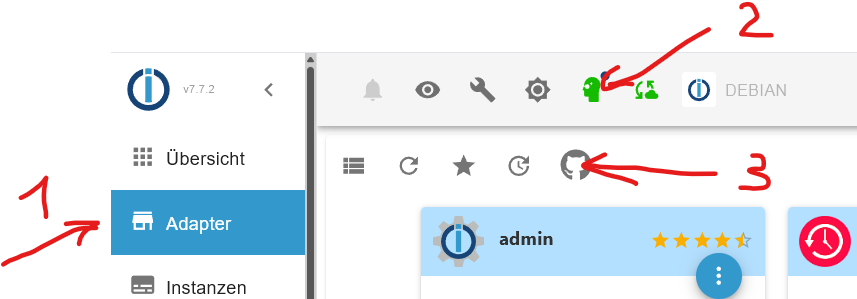
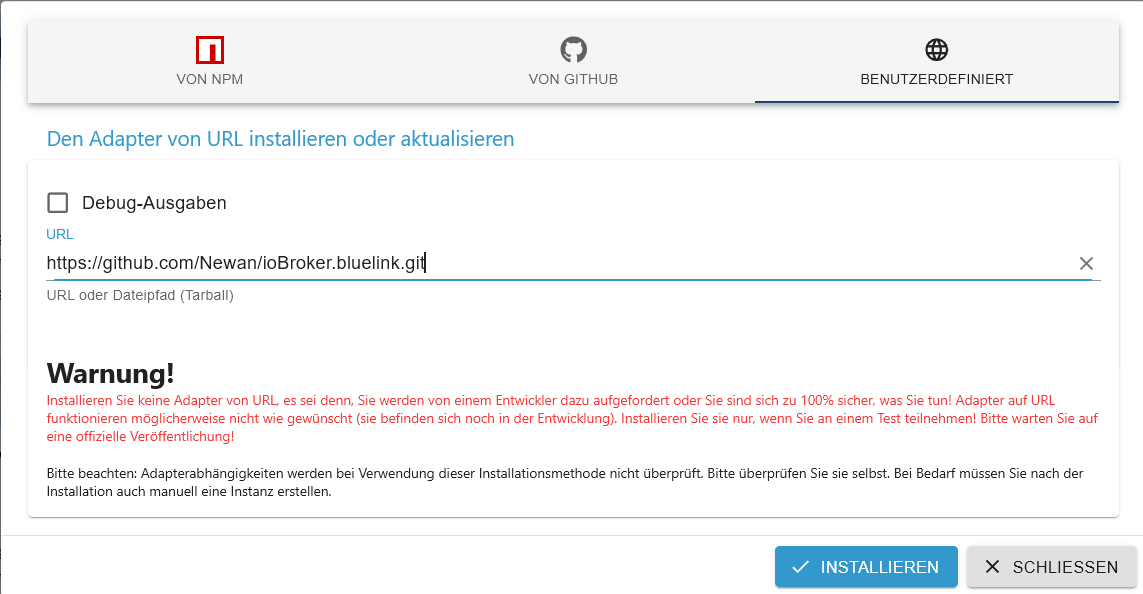
Den Reiter Benutzerdefiniert auswählen und folgendes eintragen und installieren.
https://github.com/Newan/ioBroker.bluelink.gitJetzt Windows PowerShell mit administrativen Rechten starten.
Jetzt folgende Befehle nacheinander ausführen.
Set-ExecutionPolicy UnrestrictedA eingeben und mit Enter bestätigen.
mkdir $env:TEMP\token 2>$null; cd $env:TEMP\token$code = @" import argparse import logging import os import re import sys from dataclasses import dataclass from typing import Final from urllib.parse import parse_qs, urlparse import requests from selenium import webdriver from selenium.common.exceptions import TimeoutException, WebDriverException from selenium.webdriver.chrome.options import Options from selenium.webdriver.common.by import By from selenium.webdriver.support.ui import WebDriverWait from selenium.webdriver.support import expected_conditions as EC # ---------------------------------------------------------------------- # Logging-Konfiguration # ---------------------------------------------------------------------- logging.basicConfig( level=logging.INFO, format="%(asctime)s %(levelname)s %(message)s", handlers=[logging.StreamHandler(sys.stdout)], ) log: Final = logging.getLogger(__name__) # ---------------------------------------------------------------------- # Datenklassen für Hyundai/Kia # ---------------------------------------------------------------------- @dataclass(frozen=True) class BrandConfig: brand: str client_id: str client_secret: str redirect_final: str success_selector: str login_url: str def build_config(brand: str) -> BrandConfig: """Erzeugt die Konfiguration für Hyundai bzw. Kia.""" base_url = f"https://idpconnect-eu.{brand}.com/auth/api/v2/user/oauth2/" if brand == "kia": return BrandConfig( brand=brand, client_id="fdc85c00-0a2f-4c64-bcb4-2cfb1500730a", client_secret=os.getenv("KIA_CLIENT_SECRET", "secret"), redirect_final="https://prd.eu-ccapi.kia.com:8080/api/v1/user/oauth2/redirect", success_selector="a.logout.user", login_url=( f"{base_url}authorize?" "ui_locales=de&" "scope=openid%20profile%20email%20phone&" "response_type=code&" "client_id=peukiaidm-online-sales&" "redirect_uri=https://www.kia.com/api/bin/oneid/login&" "state=default" ), ) # ---------- hyundai ---------- return BrandConfig( brand=brand, client_id="6d477c38-3ca4-4cf3-9557-2a1929a94654", client_secret=os.getenv( "HYUNDAI_CLIENT_SECRET", "KUy49XxPzLpLuoK0xhBC77W6VXhmtQR9iQhmIFjjoY4IpxsV", ), redirect_final="https://prd.eu-ccapi.hyundai.com:8080/api/v1/user/oauth2/token", success_selector="button.mail_check", login_url=( f"{base_url}authorize?" "client_id=peuhyundaiidm-ctb&" "redirect_uri=https://ctbapi.hyundai-europe.com/api/auth&" "response_type=code&" "scope=openid+profile+email+phone" ), ) # ---------------------------------------------------------------------- # Selenium‑Helper # ---------------------------------------------------------------------- def init_driver(user_agent: str | None = None) -> webdriver.Chrome: options = Options() if user_agent: options.add_argument(f"user-agent={user_agent}") # Für lokale Entwicklung ist ein sichtbarer Browser oft hilfreicher. # Entferne `--headless`, wenn du das UI sehen möchtest. # options.add_argument("--headless") options.add_argument("--disable-gpu") options.add_argument("--no-sandbox") try: driver = webdriver.Chrome(options=options) driver.maximize_window() return driver except WebDriverException as exc: log.error("Chromedriver konnte nicht gestartet werden: %s", exc) raise def wait_for_success(driver: webdriver.Chrome, selector: str, timeout: int = 300) -> None: log.info("Warte bis das Erfolgs‑Element (%s) erscheint …", selector) wait = WebDriverWait(driver, timeout) wait.until(EC.presence_of_element_located((By.CSS_SELECTOR, selector))) log.info("Erfolgs‑Element gefunden.") # ---------------------------------------------------------------------- # Token‑Austausch # ---------------------------------------------------------------------- def exchange_code( token_url: str, code: str, cfg: BrandConfig, ) -> dict[str, str]: payload = { "grant_type": "authorization_code", "code": code, "redirect_uri": cfg.redirect_final, "client_id": cfg.client_id, "client_secret": cfg.client_secret, } log.debug("POST %s – payload=%s", token_url, payload) try: resp = requests.post(token_url, data=payload, timeout=30) resp.raise_for_status() data = resp.json() log.info("Token‑Austausch erfolgreich.") return {"access_token": data["access_token"], "refresh_token": data["refresh_token"]} except requests.RequestException as exc: log.error("Fehler beim Token‑Austausch: %s – Antwort: %s", exc, getattr(exc.response, "text", "")) raise # ---------------------------------------------------------------------- # Haupt‑Workflow # ---------------------------------------------------------------------- def main() -> None: parser = argparse.ArgumentParser(description="OAuth‑Login‑Automation für Hyundai/Kia") parser.add_argument( "--brand", required=True, choices=["hyundai", "kia"], type=str.lower, help="Marke des Fahrzeugs (hyundai/kia)", ) args = parser.parse_args() cfg = build_config(args.brand) token_url = f"https://idpconnect-eu.{cfg.brand}.com/auth/api/v2/user/oauth2/token" redirect_url = ( f"https://idpconnect-eu.{cfg.brand}.com/auth/api/v2/user/oauth2/authorize?" f"response_type=code&client_id={cfg.client_id}" f"&redirect_uri={cfg.redirect_final}&lang=de&state=ccsp" ) driver = init_driver( user_agent="Mozilla/5.0 (Linux; Android 4.1.1; Galaxy Nexus Build/JRO03C)" ) try: log.info("Öffne Login‑Seite: %s", cfg.login_url) driver.get(cfg.login_url) log.info("Bitte melde dich im geöffneten Browser an …") wait_for_success(driver, cfg.success_selector) log.info("Navigiere zur Redirect‑URL, um den Autorisierungscode zu erhalten.") driver.get(redirect_url) # ------------------------------------------------------------------ # Code‑Extraktion # ------------------------------------------------------------------ parsed = urlparse(driver.current_url) qs = parse_qs(parsed.query) if "code" not in qs: raise ValueError("Autorisation‑Code nicht in der URL gefunden.") code = qs["code"][0] log.debug("Gefundener Code: %s", code) tokens = exchange_code(token_url, code, cfg) log.info("✅ Refresh‑Token: %s", tokens["refresh_token"]) log.info("✅ Access‑Token : %s", tokens["access_token"]) except TimeoutException: log.error("Timeout – Login nicht abgeschlossen oder Erfolgs‑Element nicht gefunden.") finally: driver.quit() if __name__ == "__main__": main() "@ $code | Out-File -FilePath "$env:TEMP\token\ApiToken.py" -Encoding UTF8py -m venv .venv.\.venv\Scripts\Activate.ps1pip install --upgrade pippip install selenium requests webdriver-managerpy -m pip install --upgrade pip selenium requestsAchtung jetzt nur den Befehl für Hyundai oder KIA verwenden!!!
für Hyundai
clspy .\ApiToken.py --brand hyundaifür KIA
clspy .\ApiToken.py --brand kiaHier geht es für beide weiter.
Jetzt sollte sich Chrome öffnen. Dort mit den Benutzerdaten einloggen.
Nun sollte im Fenster von PowerShell ein Refresh Token und ein Access Token erscheinen.
Diese mit der Maus markieren und mit Strg-C kopieren und in eine leere Textdatei mit Strg-V einfügen.
Der Refresh Token ist das Passwort für den Bluelink AdapterAls letztes kann nun noch die Ausführungsrichtlinien (Unrestricted) für PowerShell-Scripts entfernt und der temporäre Ordner gelöscht werden. Dazu in der Powershell die folgenden Befehle eingeben.
Set-ExecutionPolicy UndefinedA eingeben und mit Enter bestätigen.
cd..Remove-item $env:TEMP\tokenA eingeben und mit Enter bestätigen.
Viel Spass
-
Anleitung zur Erstellung eines Tokens für Hyundai oder KIA mit Windows
Python Releases for Windows installieren.
Google Chrome installierenIn der Konsole folgenden Befehl ausführen. (oder den Adapter Bluelink löschen)
rm -r /opt/iobroker/node_modules/bluelinky/Im Iobroker den Reiter Adapter anklicken. Dan den Expertenmodus aktivieren und die Katze anklicken.
Den Reiter Benutzerdefiniert auswählen und folgendes eintragen und installieren.
https://github.com/Newan/ioBroker.bluelink.gitJetzt Windows PowerShell mit administrativen Rechten starten.
Jetzt folgende Befehle nacheinander ausführen.
Set-ExecutionPolicy UnrestrictedA eingeben und mit Enter bestätigen.
mkdir $env:TEMP\token 2>$null; cd $env:TEMP\token$code = @" import argparse import logging import os import re import sys from dataclasses import dataclass from typing import Final from urllib.parse import parse_qs, urlparse import requests from selenium import webdriver from selenium.common.exceptions import TimeoutException, WebDriverException from selenium.webdriver.chrome.options import Options from selenium.webdriver.common.by import By from selenium.webdriver.support.ui import WebDriverWait from selenium.webdriver.support import expected_conditions as EC # ---------------------------------------------------------------------- # Logging-Konfiguration # ---------------------------------------------------------------------- logging.basicConfig( level=logging.INFO, format="%(asctime)s %(levelname)s %(message)s", handlers=[logging.StreamHandler(sys.stdout)], ) log: Final = logging.getLogger(__name__) # ---------------------------------------------------------------------- # Datenklassen für Hyundai/Kia # ---------------------------------------------------------------------- @dataclass(frozen=True) class BrandConfig: brand: str client_id: str client_secret: str redirect_final: str success_selector: str login_url: str def build_config(brand: str) -> BrandConfig: """Erzeugt die Konfiguration für Hyundai bzw. Kia.""" base_url = f"https://idpconnect-eu.{brand}.com/auth/api/v2/user/oauth2/" if brand == "kia": return BrandConfig( brand=brand, client_id="fdc85c00-0a2f-4c64-bcb4-2cfb1500730a", client_secret=os.getenv("KIA_CLIENT_SECRET", "secret"), redirect_final="https://prd.eu-ccapi.kia.com:8080/api/v1/user/oauth2/redirect", success_selector="a.logout.user", login_url=( f"{base_url}authorize?" "ui_locales=de&" "scope=openid%20profile%20email%20phone&" "response_type=code&" "client_id=peukiaidm-online-sales&" "redirect_uri=https://www.kia.com/api/bin/oneid/login&" "state=default" ), ) # ---------- hyundai ---------- return BrandConfig( brand=brand, client_id="6d477c38-3ca4-4cf3-9557-2a1929a94654", client_secret=os.getenv( "HYUNDAI_CLIENT_SECRET", "KUy49XxPzLpLuoK0xhBC77W6VXhmtQR9iQhmIFjjoY4IpxsV", ), redirect_final="https://prd.eu-ccapi.hyundai.com:8080/api/v1/user/oauth2/token", success_selector="button.mail_check", login_url=( f"{base_url}authorize?" "client_id=peuhyundaiidm-ctb&" "redirect_uri=https://ctbapi.hyundai-europe.com/api/auth&" "response_type=code&" "scope=openid+profile+email+phone" ), ) # ---------------------------------------------------------------------- # Selenium‑Helper # ---------------------------------------------------------------------- def init_driver(user_agent: str | None = None) -> webdriver.Chrome: options = Options() if user_agent: options.add_argument(f"user-agent={user_agent}") # Für lokale Entwicklung ist ein sichtbarer Browser oft hilfreicher. # Entferne `--headless`, wenn du das UI sehen möchtest. # options.add_argument("--headless") options.add_argument("--disable-gpu") options.add_argument("--no-sandbox") try: driver = webdriver.Chrome(options=options) driver.maximize_window() return driver except WebDriverException as exc: log.error("Chromedriver konnte nicht gestartet werden: %s", exc) raise def wait_for_success(driver: webdriver.Chrome, selector: str, timeout: int = 300) -> None: log.info("Warte bis das Erfolgs‑Element (%s) erscheint …", selector) wait = WebDriverWait(driver, timeout) wait.until(EC.presence_of_element_located((By.CSS_SELECTOR, selector))) log.info("Erfolgs‑Element gefunden.") # ---------------------------------------------------------------------- # Token‑Austausch # ---------------------------------------------------------------------- def exchange_code( token_url: str, code: str, cfg: BrandConfig, ) -> dict[str, str]: payload = { "grant_type": "authorization_code", "code": code, "redirect_uri": cfg.redirect_final, "client_id": cfg.client_id, "client_secret": cfg.client_secret, } log.debug("POST %s – payload=%s", token_url, payload) try: resp = requests.post(token_url, data=payload, timeout=30) resp.raise_for_status() data = resp.json() log.info("Token‑Austausch erfolgreich.") return {"access_token": data["access_token"], "refresh_token": data["refresh_token"]} except requests.RequestException as exc: log.error("Fehler beim Token‑Austausch: %s – Antwort: %s", exc, getattr(exc.response, "text", "")) raise # ---------------------------------------------------------------------- # Haupt‑Workflow # ---------------------------------------------------------------------- def main() -> None: parser = argparse.ArgumentParser(description="OAuth‑Login‑Automation für Hyundai/Kia") parser.add_argument( "--brand", required=True, choices=["hyundai", "kia"], type=str.lower, help="Marke des Fahrzeugs (hyundai/kia)", ) args = parser.parse_args() cfg = build_config(args.brand) token_url = f"https://idpconnect-eu.{cfg.brand}.com/auth/api/v2/user/oauth2/token" redirect_url = ( f"https://idpconnect-eu.{cfg.brand}.com/auth/api/v2/user/oauth2/authorize?" f"response_type=code&client_id={cfg.client_id}" f"&redirect_uri={cfg.redirect_final}&lang=de&state=ccsp" ) driver = init_driver( user_agent="Mozilla/5.0 (Linux; Android 4.1.1; Galaxy Nexus Build/JRO03C)" ) try: log.info("Öffne Login‑Seite: %s", cfg.login_url) driver.get(cfg.login_url) log.info("Bitte melde dich im geöffneten Browser an …") wait_for_success(driver, cfg.success_selector) log.info("Navigiere zur Redirect‑URL, um den Autorisierungscode zu erhalten.") driver.get(redirect_url) # ------------------------------------------------------------------ # Code‑Extraktion # ------------------------------------------------------------------ parsed = urlparse(driver.current_url) qs = parse_qs(parsed.query) if "code" not in qs: raise ValueError("Autorisation‑Code nicht in der URL gefunden.") code = qs["code"][0] log.debug("Gefundener Code: %s", code) tokens = exchange_code(token_url, code, cfg) log.info("✅ Refresh‑Token: %s", tokens["refresh_token"]) log.info("✅ Access‑Token : %s", tokens["access_token"]) except TimeoutException: log.error("Timeout – Login nicht abgeschlossen oder Erfolgs‑Element nicht gefunden.") finally: driver.quit() if __name__ == "__main__": main() "@ $code | Out-File -FilePath "$env:TEMP\token\ApiToken.py" -Encoding UTF8py -m venv .venv.\.venv\Scripts\Activate.ps1pip install --upgrade pippip install selenium requests webdriver-managerpy -m pip install --upgrade pip selenium requestsAchtung jetzt nur den Befehl für Hyundai oder KIA verwenden!!!
für Hyundai
clspy .\ApiToken.py --brand hyundaifür KIA
clspy .\ApiToken.py --brand kiaHier geht es für beide weiter.
Jetzt sollte sich Chrome öffnen. Dort mit den Benutzerdaten einloggen.
Nun sollte im Fenster von PowerShell ein Refresh Token und ein Access Token erscheinen.
Diese mit der Maus markieren und mit Strg-C kopieren und in eine leere Textdatei mit Strg-V einfügen.
Der Refresh Token ist das Passwort für den Bluelink AdapterAls letztes kann nun noch die Ausführungsrichtlinien (Unrestricted) für PowerShell-Scripts entfernt und der temporäre Ordner gelöscht werden. Dazu in der Powershell die folgenden Befehle eingeben.
Set-ExecutionPolicy UndefinedA eingeben und mit Enter bestätigen.
cd..Remove-item $env:TEMP\tokenA eingeben und mit Enter bestätigen.
Viel Spass
@fichte_112 besser geht es nicht, super Anleitung dafür.
-
Anleitung zur Erstellung eines Tokens für Hyundai oder KIA mit Windows
Python Releases for Windows installieren.
Google Chrome installierenIn der Konsole folgenden Befehl ausführen. (oder den Adapter Bluelink löschen)
rm -r /opt/iobroker/node_modules/bluelinky/Im Iobroker den Reiter Adapter anklicken. Dan den Expertenmodus aktivieren und die Katze anklicken.
Den Reiter Benutzerdefiniert auswählen und folgendes eintragen und installieren.
https://github.com/Newan/ioBroker.bluelink.gitJetzt Windows PowerShell mit administrativen Rechten starten.
Jetzt folgende Befehle nacheinander ausführen.
Set-ExecutionPolicy UnrestrictedA eingeben und mit Enter bestätigen.
mkdir $env:TEMP\token 2>$null; cd $env:TEMP\token$code = @" import argparse import logging import os import re import sys from dataclasses import dataclass from typing import Final from urllib.parse import parse_qs, urlparse import requests from selenium import webdriver from selenium.common.exceptions import TimeoutException, WebDriverException from selenium.webdriver.chrome.options import Options from selenium.webdriver.common.by import By from selenium.webdriver.support.ui import WebDriverWait from selenium.webdriver.support import expected_conditions as EC # ---------------------------------------------------------------------- # Logging-Konfiguration # ---------------------------------------------------------------------- logging.basicConfig( level=logging.INFO, format="%(asctime)s %(levelname)s %(message)s", handlers=[logging.StreamHandler(sys.stdout)], ) log: Final = logging.getLogger(__name__) # ---------------------------------------------------------------------- # Datenklassen für Hyundai/Kia # ---------------------------------------------------------------------- @dataclass(frozen=True) class BrandConfig: brand: str client_id: str client_secret: str redirect_final: str success_selector: str login_url: str def build_config(brand: str) -> BrandConfig: """Erzeugt die Konfiguration für Hyundai bzw. Kia.""" base_url = f"https://idpconnect-eu.{brand}.com/auth/api/v2/user/oauth2/" if brand == "kia": return BrandConfig( brand=brand, client_id="fdc85c00-0a2f-4c64-bcb4-2cfb1500730a", client_secret=os.getenv("KIA_CLIENT_SECRET", "secret"), redirect_final="https://prd.eu-ccapi.kia.com:8080/api/v1/user/oauth2/redirect", success_selector="a.logout.user", login_url=( f"{base_url}authorize?" "ui_locales=de&" "scope=openid%20profile%20email%20phone&" "response_type=code&" "client_id=peukiaidm-online-sales&" "redirect_uri=https://www.kia.com/api/bin/oneid/login&" "state=default" ), ) # ---------- hyundai ---------- return BrandConfig( brand=brand, client_id="6d477c38-3ca4-4cf3-9557-2a1929a94654", client_secret=os.getenv( "HYUNDAI_CLIENT_SECRET", "KUy49XxPzLpLuoK0xhBC77W6VXhmtQR9iQhmIFjjoY4IpxsV", ), redirect_final="https://prd.eu-ccapi.hyundai.com:8080/api/v1/user/oauth2/token", success_selector="button.mail_check", login_url=( f"{base_url}authorize?" "client_id=peuhyundaiidm-ctb&" "redirect_uri=https://ctbapi.hyundai-europe.com/api/auth&" "response_type=code&" "scope=openid+profile+email+phone" ), ) # ---------------------------------------------------------------------- # Selenium‑Helper # ---------------------------------------------------------------------- def init_driver(user_agent: str | None = None) -> webdriver.Chrome: options = Options() if user_agent: options.add_argument(f"user-agent={user_agent}") # Für lokale Entwicklung ist ein sichtbarer Browser oft hilfreicher. # Entferne `--headless`, wenn du das UI sehen möchtest. # options.add_argument("--headless") options.add_argument("--disable-gpu") options.add_argument("--no-sandbox") try: driver = webdriver.Chrome(options=options) driver.maximize_window() return driver except WebDriverException as exc: log.error("Chromedriver konnte nicht gestartet werden: %s", exc) raise def wait_for_success(driver: webdriver.Chrome, selector: str, timeout: int = 300) -> None: log.info("Warte bis das Erfolgs‑Element (%s) erscheint …", selector) wait = WebDriverWait(driver, timeout) wait.until(EC.presence_of_element_located((By.CSS_SELECTOR, selector))) log.info("Erfolgs‑Element gefunden.") # ---------------------------------------------------------------------- # Token‑Austausch # ---------------------------------------------------------------------- def exchange_code( token_url: str, code: str, cfg: BrandConfig, ) -> dict[str, str]: payload = { "grant_type": "authorization_code", "code": code, "redirect_uri": cfg.redirect_final, "client_id": cfg.client_id, "client_secret": cfg.client_secret, } log.debug("POST %s – payload=%s", token_url, payload) try: resp = requests.post(token_url, data=payload, timeout=30) resp.raise_for_status() data = resp.json() log.info("Token‑Austausch erfolgreich.") return {"access_token": data["access_token"], "refresh_token": data["refresh_token"]} except requests.RequestException as exc: log.error("Fehler beim Token‑Austausch: %s – Antwort: %s", exc, getattr(exc.response, "text", "")) raise # ---------------------------------------------------------------------- # Haupt‑Workflow # ---------------------------------------------------------------------- def main() -> None: parser = argparse.ArgumentParser(description="OAuth‑Login‑Automation für Hyundai/Kia") parser.add_argument( "--brand", required=True, choices=["hyundai", "kia"], type=str.lower, help="Marke des Fahrzeugs (hyundai/kia)", ) args = parser.parse_args() cfg = build_config(args.brand) token_url = f"https://idpconnect-eu.{cfg.brand}.com/auth/api/v2/user/oauth2/token" redirect_url = ( f"https://idpconnect-eu.{cfg.brand}.com/auth/api/v2/user/oauth2/authorize?" f"response_type=code&client_id={cfg.client_id}" f"&redirect_uri={cfg.redirect_final}&lang=de&state=ccsp" ) driver = init_driver( user_agent="Mozilla/5.0 (Linux; Android 4.1.1; Galaxy Nexus Build/JRO03C)" ) try: log.info("Öffne Login‑Seite: %s", cfg.login_url) driver.get(cfg.login_url) log.info("Bitte melde dich im geöffneten Browser an …") wait_for_success(driver, cfg.success_selector) log.info("Navigiere zur Redirect‑URL, um den Autorisierungscode zu erhalten.") driver.get(redirect_url) # ------------------------------------------------------------------ # Code‑Extraktion # ------------------------------------------------------------------ parsed = urlparse(driver.current_url) qs = parse_qs(parsed.query) if "code" not in qs: raise ValueError("Autorisation‑Code nicht in der URL gefunden.") code = qs["code"][0] log.debug("Gefundener Code: %s", code) tokens = exchange_code(token_url, code, cfg) log.info("✅ Refresh‑Token: %s", tokens["refresh_token"]) log.info("✅ Access‑Token : %s", tokens["access_token"]) except TimeoutException: log.error("Timeout – Login nicht abgeschlossen oder Erfolgs‑Element nicht gefunden.") finally: driver.quit() if __name__ == "__main__": main() "@ $code | Out-File -FilePath "$env:TEMP\token\ApiToken.py" -Encoding UTF8py -m venv .venv.\.venv\Scripts\Activate.ps1pip install --upgrade pippip install selenium requests webdriver-managerpy -m pip install --upgrade pip selenium requestsAchtung jetzt nur den Befehl für Hyundai oder KIA verwenden!!!
für Hyundai
clspy .\ApiToken.py --brand hyundaifür KIA
clspy .\ApiToken.py --brand kiaHier geht es für beide weiter.
Jetzt sollte sich Chrome öffnen. Dort mit den Benutzerdaten einloggen.
Nun sollte im Fenster von PowerShell ein Refresh Token und ein Access Token erscheinen.
Diese mit der Maus markieren und mit Strg-C kopieren und in eine leere Textdatei mit Strg-V einfügen.
Der Refresh Token ist das Passwort für den Bluelink AdapterAls letztes kann nun noch die Ausführungsrichtlinien (Unrestricted) für PowerShell-Scripts entfernt und der temporäre Ordner gelöscht werden. Dazu in der Powershell die folgenden Befehle eingeben.
Set-ExecutionPolicy UndefinedA eingeben und mit Enter bestätigen.
cd..Remove-item $env:TEMP\tokenA eingeben und mit Enter bestätigen.
Viel Spass
@fichte_112 sagte in Adapter Hyundai (Bluelink) oder KIA (UVO):
Anleitung zur Erstellung eines Tokens für Hyundai mit Windows

Es wäre gut, wenn so eine Top-Anleitung nicht hier im Thread-Nirvana vergammelt, sondern ins Wiki kommt.
Da gehört sowas hin.Ist das hier das richtige Wiki?
https://github.com/Newan/ioBroker.bluelink/wiki -
Anleitung zur Erstellung eines Tokens für Hyundai oder KIA mit Windows
Python Releases for Windows installieren.
Google Chrome installierenIn der Konsole folgenden Befehl ausführen. (oder den Adapter Bluelink löschen)
rm -r /opt/iobroker/node_modules/bluelinky/Im Iobroker den Reiter Adapter anklicken. Dan den Expertenmodus aktivieren und die Katze anklicken.
Den Reiter Benutzerdefiniert auswählen und folgendes eintragen und installieren.
https://github.com/Newan/ioBroker.bluelink.gitJetzt Windows PowerShell mit administrativen Rechten starten.
Jetzt folgende Befehle nacheinander ausführen.
Set-ExecutionPolicy UnrestrictedA eingeben und mit Enter bestätigen.
mkdir $env:TEMP\token 2>$null; cd $env:TEMP\token$code = @" import argparse import logging import os import re import sys from dataclasses import dataclass from typing import Final from urllib.parse import parse_qs, urlparse import requests from selenium import webdriver from selenium.common.exceptions import TimeoutException, WebDriverException from selenium.webdriver.chrome.options import Options from selenium.webdriver.common.by import By from selenium.webdriver.support.ui import WebDriverWait from selenium.webdriver.support import expected_conditions as EC # ---------------------------------------------------------------------- # Logging-Konfiguration # ---------------------------------------------------------------------- logging.basicConfig( level=logging.INFO, format="%(asctime)s %(levelname)s %(message)s", handlers=[logging.StreamHandler(sys.stdout)], ) log: Final = logging.getLogger(__name__) # ---------------------------------------------------------------------- # Datenklassen für Hyundai/Kia # ---------------------------------------------------------------------- @dataclass(frozen=True) class BrandConfig: brand: str client_id: str client_secret: str redirect_final: str success_selector: str login_url: str def build_config(brand: str) -> BrandConfig: """Erzeugt die Konfiguration für Hyundai bzw. Kia.""" base_url = f"https://idpconnect-eu.{brand}.com/auth/api/v2/user/oauth2/" if brand == "kia": return BrandConfig( brand=brand, client_id="fdc85c00-0a2f-4c64-bcb4-2cfb1500730a", client_secret=os.getenv("KIA_CLIENT_SECRET", "secret"), redirect_final="https://prd.eu-ccapi.kia.com:8080/api/v1/user/oauth2/redirect", success_selector="a.logout.user", login_url=( f"{base_url}authorize?" "ui_locales=de&" "scope=openid%20profile%20email%20phone&" "response_type=code&" "client_id=peukiaidm-online-sales&" "redirect_uri=https://www.kia.com/api/bin/oneid/login&" "state=default" ), ) # ---------- hyundai ---------- return BrandConfig( brand=brand, client_id="6d477c38-3ca4-4cf3-9557-2a1929a94654", client_secret=os.getenv( "HYUNDAI_CLIENT_SECRET", "KUy49XxPzLpLuoK0xhBC77W6VXhmtQR9iQhmIFjjoY4IpxsV", ), redirect_final="https://prd.eu-ccapi.hyundai.com:8080/api/v1/user/oauth2/token", success_selector="button.mail_check", login_url=( f"{base_url}authorize?" "client_id=peuhyundaiidm-ctb&" "redirect_uri=https://ctbapi.hyundai-europe.com/api/auth&" "response_type=code&" "scope=openid+profile+email+phone" ), ) # ---------------------------------------------------------------------- # Selenium‑Helper # ---------------------------------------------------------------------- def init_driver(user_agent: str | None = None) -> webdriver.Chrome: options = Options() if user_agent: options.add_argument(f"user-agent={user_agent}") # Für lokale Entwicklung ist ein sichtbarer Browser oft hilfreicher. # Entferne `--headless`, wenn du das UI sehen möchtest. # options.add_argument("--headless") options.add_argument("--disable-gpu") options.add_argument("--no-sandbox") try: driver = webdriver.Chrome(options=options) driver.maximize_window() return driver except WebDriverException as exc: log.error("Chromedriver konnte nicht gestartet werden: %s", exc) raise def wait_for_success(driver: webdriver.Chrome, selector: str, timeout: int = 300) -> None: log.info("Warte bis das Erfolgs‑Element (%s) erscheint …", selector) wait = WebDriverWait(driver, timeout) wait.until(EC.presence_of_element_located((By.CSS_SELECTOR, selector))) log.info("Erfolgs‑Element gefunden.") # ---------------------------------------------------------------------- # Token‑Austausch # ---------------------------------------------------------------------- def exchange_code( token_url: str, code: str, cfg: BrandConfig, ) -> dict[str, str]: payload = { "grant_type": "authorization_code", "code": code, "redirect_uri": cfg.redirect_final, "client_id": cfg.client_id, "client_secret": cfg.client_secret, } log.debug("POST %s – payload=%s", token_url, payload) try: resp = requests.post(token_url, data=payload, timeout=30) resp.raise_for_status() data = resp.json() log.info("Token‑Austausch erfolgreich.") return {"access_token": data["access_token"], "refresh_token": data["refresh_token"]} except requests.RequestException as exc: log.error("Fehler beim Token‑Austausch: %s – Antwort: %s", exc, getattr(exc.response, "text", "")) raise # ---------------------------------------------------------------------- # Haupt‑Workflow # ---------------------------------------------------------------------- def main() -> None: parser = argparse.ArgumentParser(description="OAuth‑Login‑Automation für Hyundai/Kia") parser.add_argument( "--brand", required=True, choices=["hyundai", "kia"], type=str.lower, help="Marke des Fahrzeugs (hyundai/kia)", ) args = parser.parse_args() cfg = build_config(args.brand) token_url = f"https://idpconnect-eu.{cfg.brand}.com/auth/api/v2/user/oauth2/token" redirect_url = ( f"https://idpconnect-eu.{cfg.brand}.com/auth/api/v2/user/oauth2/authorize?" f"response_type=code&client_id={cfg.client_id}" f"&redirect_uri={cfg.redirect_final}&lang=de&state=ccsp" ) driver = init_driver( user_agent="Mozilla/5.0 (Linux; Android 4.1.1; Galaxy Nexus Build/JRO03C)" ) try: log.info("Öffne Login‑Seite: %s", cfg.login_url) driver.get(cfg.login_url) log.info("Bitte melde dich im geöffneten Browser an …") wait_for_success(driver, cfg.success_selector) log.info("Navigiere zur Redirect‑URL, um den Autorisierungscode zu erhalten.") driver.get(redirect_url) # ------------------------------------------------------------------ # Code‑Extraktion # ------------------------------------------------------------------ parsed = urlparse(driver.current_url) qs = parse_qs(parsed.query) if "code" not in qs: raise ValueError("Autorisation‑Code nicht in der URL gefunden.") code = qs["code"][0] log.debug("Gefundener Code: %s", code) tokens = exchange_code(token_url, code, cfg) log.info("✅ Refresh‑Token: %s", tokens["refresh_token"]) log.info("✅ Access‑Token : %s", tokens["access_token"]) except TimeoutException: log.error("Timeout – Login nicht abgeschlossen oder Erfolgs‑Element nicht gefunden.") finally: driver.quit() if __name__ == "__main__": main() "@ $code | Out-File -FilePath "$env:TEMP\token\ApiToken.py" -Encoding UTF8py -m venv .venv.\.venv\Scripts\Activate.ps1pip install --upgrade pippip install selenium requests webdriver-managerpy -m pip install --upgrade pip selenium requestsAchtung jetzt nur den Befehl für Hyundai oder KIA verwenden!!!
für Hyundai
clspy .\ApiToken.py --brand hyundaifür KIA
clspy .\ApiToken.py --brand kiaHier geht es für beide weiter.
Jetzt sollte sich Chrome öffnen. Dort mit den Benutzerdaten einloggen.
Nun sollte im Fenster von PowerShell ein Refresh Token und ein Access Token erscheinen.
Diese mit der Maus markieren und mit Strg-C kopieren und in eine leere Textdatei mit Strg-V einfügen.
Der Refresh Token ist das Passwort für den Bluelink AdapterAls letztes kann nun noch die Ausführungsrichtlinien (Unrestricted) für PowerShell-Scripts entfernt und der temporäre Ordner gelöscht werden. Dazu in der Powershell die folgenden Befehle eingeben.
Set-ExecutionPolicy UndefinedA eingeben und mit Enter bestätigen.
cd..Remove-item $env:TEMP\tokenA eingeben und mit Enter bestätigen.
Viel Spass
@fichte_112 said in Adapter Hyundai (Bluelink) oder KIA (UVO):
Anleitung zur Erstellung eines Tokens für Hyundai oder KIA mit Windows
Vielen Dank für die super-Anleitung!Hatte vor einigen Wochen schon mal einen refresh Token erstellt und eingetragen, damals lief alles. Zumindest so lange, bis mein Raspberry Pi wegen dem automatischen Backup-Lauf die iobroker-Instanz für einige Stunden gestoppt hat, danach ging es wieder nicht mehr.
Dann war es mir ein paar Tage egal und nun versuche ich es seit zwei Tagen wieder eine Verbindung hinzubekommen. Der Adapter geht auch auf grün, aber im Log erscheint bei jedem Datenabruf der folgende Fehler:bluelink.0 2025-10-22 16:24:54.358 error @EuropeController.pin: [400] Bad Request on [PUT] https://prd.eu-ccapi.kia.com:8080/api/v1/user/pin - {"errId":"76563607-152a-479a-8b8a-5cc0420be32b","errCode":"4003","errMsg":"Invalid values","errBody":{"remainCount":0,"remainTime":157}} bluelink.0 2025-10-22 16:24:54.357 error Error on API-Request Status, ErrorCount:1Habe es jetzt einige male versucht, jedes mal ein neues Token bekommen, mal mit und ohne Pin (Fin) versucht usw., aber es will einfach nicht.
Jemand eine Idee?
-
@fichte_112 said in Adapter Hyundai (Bluelink) oder KIA (UVO):
Anleitung zur Erstellung eines Tokens für Hyundai oder KIA mit Windows
Vielen Dank für die super-Anleitung!Hatte vor einigen Wochen schon mal einen refresh Token erstellt und eingetragen, damals lief alles. Zumindest so lange, bis mein Raspberry Pi wegen dem automatischen Backup-Lauf die iobroker-Instanz für einige Stunden gestoppt hat, danach ging es wieder nicht mehr.
Dann war es mir ein paar Tage egal und nun versuche ich es seit zwei Tagen wieder eine Verbindung hinzubekommen. Der Adapter geht auch auf grün, aber im Log erscheint bei jedem Datenabruf der folgende Fehler:bluelink.0 2025-10-22 16:24:54.358 error @EuropeController.pin: [400] Bad Request on [PUT] https://prd.eu-ccapi.kia.com:8080/api/v1/user/pin - {"errId":"76563607-152a-479a-8b8a-5cc0420be32b","errCode":"4003","errMsg":"Invalid values","errBody":{"remainCount":0,"remainTime":157}} bluelink.0 2025-10-22 16:24:54.357 error Error on API-Request Status, ErrorCount:1Habe es jetzt einige male versucht, jedes mal ein neues Token bekommen, mal mit und ohne Pin (Fin) versucht usw., aber es will einfach nicht.
Jemand eine Idee?
@sansibar die Pin ist nicht die Fin sondern eine Pin, welche in der App von KIA oder Hyundai erstellt werden muss
-
@sansibar die Pin ist nicht die Fin sondern eine Pin, welche in der App von KIA oder Hyundai erstellt werden muss
@fichte_112 said in Adapter Hyundai (Bluelink) oder KIA (UVO):
@sansibar die Pin ist nicht die Fin sondern eine Pin, welche in der App von KIA oder Hyundai erstellt werden muss
DANKE!
Was für ein Facepalm-Moment!
Jetzt läuft's! -
@fichte_112 sagte in Adapter Hyundai (Bluelink) oder KIA (UVO):
Anleitung zur Erstellung eines Tokens für Hyundai mit Windows
Es wäre gut, wenn so eine Top-Anleitung nicht hier im Thread-Nirvana vergammelt, sondern ins Wiki kommt.
Da gehört sowas hin.Ist das hier das richtige Wiki?
https://github.com/Newan/ioBroker.bluelink/wiki@meute sagte in Adapter Hyundai (Bluelink) oder KIA (UVO):
@fichte_112 sagte in Adapter Hyundai (Bluelink) oder KIA (UVO):
Anleitung zur Erstellung eines Tokens für Hyundai mit Windows
Es wäre gut, wenn so eine Top-Anleitung nicht hier im Thread-Nirvana vergammelt, sondern ins Wiki kommt.
Da gehört sowas hin.Ist das hier das richtige Wiki?
https://github.com/Newan/ioBroker.bluelink/wikiEs ist aber nicht meine github Seite.
-
@meute sagte in Adapter Hyundai (Bluelink) oder KIA (UVO):
@fichte_112 sagte in Adapter Hyundai (Bluelink) oder KIA (UVO):
Anleitung zur Erstellung eines Tokens für Hyundai mit Windows
Es wäre gut, wenn so eine Top-Anleitung nicht hier im Thread-Nirvana vergammelt, sondern ins Wiki kommt.
Da gehört sowas hin.Ist das hier das richtige Wiki?
https://github.com/Newan/ioBroker.bluelink/wikiEs ist aber nicht meine github Seite.
@fichte_112 sagte in Adapter Hyundai (Bluelink) oder KIA (UVO):
@meute sagte in Adapter Hyundai (Bluelink) oder KIA (UVO):
@fichte_112 sagte in Adapter Hyundai (Bluelink) oder KIA (UVO):
Anleitung zur Erstellung eines Tokens für Hyundai mit Windows
Es wäre gut, wenn so eine Top-Anleitung nicht hier im Thread-Nirvana vergammelt, sondern ins Wiki kommt.
Da gehört sowas hin.Ist das hier das richtige Wiki?
https://github.com/Newan/ioBroker.bluelink/wikiEs ist aber nicht meine github Seite.
Schon klar, dass das nicht Deine Seite ist.
Hier wird aber der Adapter entwickelt.Vll. kann das @arteck hinzufügen.
Oder noch besser, die Seite wird als Markdown erstellt, z.B. in Notepad++ mit MD-Viewer und muss dann nur noch von @arteck ins Wiki kopiert werden.fraenk for friends Code: MATF103
-
Anleitung zur Erstellung eines Tokens für Hyundai oder KIA mit Windows
Python Releases for Windows installieren.
Google Chrome installierenIn der Konsole folgenden Befehl ausführen. (oder den Adapter Bluelink löschen)
rm -r /opt/iobroker/node_modules/bluelinky/Im Iobroker den Reiter Adapter anklicken. Dan den Expertenmodus aktivieren und die Katze anklicken.
Den Reiter Benutzerdefiniert auswählen und folgendes eintragen und installieren.
https://github.com/Newan/ioBroker.bluelink.gitJetzt Windows PowerShell mit administrativen Rechten starten.
Jetzt folgende Befehle nacheinander ausführen.
Set-ExecutionPolicy UnrestrictedA eingeben und mit Enter bestätigen.
mkdir $env:TEMP\token 2>$null; cd $env:TEMP\token$code = @" import argparse import logging import os import re import sys from dataclasses import dataclass from typing import Final from urllib.parse import parse_qs, urlparse import requests from selenium import webdriver from selenium.common.exceptions import TimeoutException, WebDriverException from selenium.webdriver.chrome.options import Options from selenium.webdriver.common.by import By from selenium.webdriver.support.ui import WebDriverWait from selenium.webdriver.support import expected_conditions as EC # ---------------------------------------------------------------------- # Logging-Konfiguration # ---------------------------------------------------------------------- logging.basicConfig( level=logging.INFO, format="%(asctime)s %(levelname)s %(message)s", handlers=[logging.StreamHandler(sys.stdout)], ) log: Final = logging.getLogger(__name__) # ---------------------------------------------------------------------- # Datenklassen für Hyundai/Kia # ---------------------------------------------------------------------- @dataclass(frozen=True) class BrandConfig: brand: str client_id: str client_secret: str redirect_final: str success_selector: str login_url: str def build_config(brand: str) -> BrandConfig: """Erzeugt die Konfiguration für Hyundai bzw. Kia.""" base_url = f"https://idpconnect-eu.{brand}.com/auth/api/v2/user/oauth2/" if brand == "kia": return BrandConfig( brand=brand, client_id="fdc85c00-0a2f-4c64-bcb4-2cfb1500730a", client_secret=os.getenv("KIA_CLIENT_SECRET", "secret"), redirect_final="https://prd.eu-ccapi.kia.com:8080/api/v1/user/oauth2/redirect", success_selector="a.logout.user", login_url=( f"{base_url}authorize?" "ui_locales=de&" "scope=openid%20profile%20email%20phone&" "response_type=code&" "client_id=peukiaidm-online-sales&" "redirect_uri=https://www.kia.com/api/bin/oneid/login&" "state=default" ), ) # ---------- hyundai ---------- return BrandConfig( brand=brand, client_id="6d477c38-3ca4-4cf3-9557-2a1929a94654", client_secret=os.getenv( "HYUNDAI_CLIENT_SECRET", "KUy49XxPzLpLuoK0xhBC77W6VXhmtQR9iQhmIFjjoY4IpxsV", ), redirect_final="https://prd.eu-ccapi.hyundai.com:8080/api/v1/user/oauth2/token", success_selector="button.mail_check", login_url=( f"{base_url}authorize?" "client_id=peuhyundaiidm-ctb&" "redirect_uri=https://ctbapi.hyundai-europe.com/api/auth&" "response_type=code&" "scope=openid+profile+email+phone" ), ) # ---------------------------------------------------------------------- # Selenium‑Helper # ---------------------------------------------------------------------- def init_driver(user_agent: str | None = None) -> webdriver.Chrome: options = Options() if user_agent: options.add_argument(f"user-agent={user_agent}") # Für lokale Entwicklung ist ein sichtbarer Browser oft hilfreicher. # Entferne `--headless`, wenn du das UI sehen möchtest. # options.add_argument("--headless") options.add_argument("--disable-gpu") options.add_argument("--no-sandbox") try: driver = webdriver.Chrome(options=options) driver.maximize_window() return driver except WebDriverException as exc: log.error("Chromedriver konnte nicht gestartet werden: %s", exc) raise def wait_for_success(driver: webdriver.Chrome, selector: str, timeout: int = 300) -> None: log.info("Warte bis das Erfolgs‑Element (%s) erscheint …", selector) wait = WebDriverWait(driver, timeout) wait.until(EC.presence_of_element_located((By.CSS_SELECTOR, selector))) log.info("Erfolgs‑Element gefunden.") # ---------------------------------------------------------------------- # Token‑Austausch # ---------------------------------------------------------------------- def exchange_code( token_url: str, code: str, cfg: BrandConfig, ) -> dict[str, str]: payload = { "grant_type": "authorization_code", "code": code, "redirect_uri": cfg.redirect_final, "client_id": cfg.client_id, "client_secret": cfg.client_secret, } log.debug("POST %s – payload=%s", token_url, payload) try: resp = requests.post(token_url, data=payload, timeout=30) resp.raise_for_status() data = resp.json() log.info("Token‑Austausch erfolgreich.") return {"access_token": data["access_token"], "refresh_token": data["refresh_token"]} except requests.RequestException as exc: log.error("Fehler beim Token‑Austausch: %s – Antwort: %s", exc, getattr(exc.response, "text", "")) raise # ---------------------------------------------------------------------- # Haupt‑Workflow # ---------------------------------------------------------------------- def main() -> None: parser = argparse.ArgumentParser(description="OAuth‑Login‑Automation für Hyundai/Kia") parser.add_argument( "--brand", required=True, choices=["hyundai", "kia"], type=str.lower, help="Marke des Fahrzeugs (hyundai/kia)", ) args = parser.parse_args() cfg = build_config(args.brand) token_url = f"https://idpconnect-eu.{cfg.brand}.com/auth/api/v2/user/oauth2/token" redirect_url = ( f"https://idpconnect-eu.{cfg.brand}.com/auth/api/v2/user/oauth2/authorize?" f"response_type=code&client_id={cfg.client_id}" f"&redirect_uri={cfg.redirect_final}&lang=de&state=ccsp" ) driver = init_driver( user_agent="Mozilla/5.0 (Linux; Android 4.1.1; Galaxy Nexus Build/JRO03C)" ) try: log.info("Öffne Login‑Seite: %s", cfg.login_url) driver.get(cfg.login_url) log.info("Bitte melde dich im geöffneten Browser an …") wait_for_success(driver, cfg.success_selector) log.info("Navigiere zur Redirect‑URL, um den Autorisierungscode zu erhalten.") driver.get(redirect_url) # ------------------------------------------------------------------ # Code‑Extraktion # ------------------------------------------------------------------ parsed = urlparse(driver.current_url) qs = parse_qs(parsed.query) if "code" not in qs: raise ValueError("Autorisation‑Code nicht in der URL gefunden.") code = qs["code"][0] log.debug("Gefundener Code: %s", code) tokens = exchange_code(token_url, code, cfg) log.info("✅ Refresh‑Token: %s", tokens["refresh_token"]) log.info("✅ Access‑Token : %s", tokens["access_token"]) except TimeoutException: log.error("Timeout – Login nicht abgeschlossen oder Erfolgs‑Element nicht gefunden.") finally: driver.quit() if __name__ == "__main__": main() "@ $code | Out-File -FilePath "$env:TEMP\token\ApiToken.py" -Encoding UTF8py -m venv .venv.\.venv\Scripts\Activate.ps1pip install --upgrade pippip install selenium requests webdriver-managerpy -m pip install --upgrade pip selenium requestsAchtung jetzt nur den Befehl für Hyundai oder KIA verwenden!!!
für Hyundai
clspy .\ApiToken.py --brand hyundaifür KIA
clspy .\ApiToken.py --brand kiaHier geht es für beide weiter.
Jetzt sollte sich Chrome öffnen. Dort mit den Benutzerdaten einloggen.
Nun sollte im Fenster von PowerShell ein Refresh Token und ein Access Token erscheinen.
Diese mit der Maus markieren und mit Strg-C kopieren und in eine leere Textdatei mit Strg-V einfügen.
Der Refresh Token ist das Passwort für den Bluelink AdapterAls letztes kann nun noch die Ausführungsrichtlinien (Unrestricted) für PowerShell-Scripts entfernt und der temporäre Ordner gelöscht werden. Dazu in der Powershell die folgenden Befehle eingeben.
Set-ExecutionPolicy UndefinedA eingeben und mit Enter bestätigen.
cd..Remove-item $env:TEMP\tokenA eingeben und mit Enter bestätigen.
Viel Spass
@fichte_112 Wow, das hat jetzt sofort geklappt. Vielen, vielen Dank!
Ich hatte Powershell installiert und das so abgearbeitet.
Alle Daten waren sofort wieder da! Ich hoffe das es so bleibt.Vielen Dank auch an @pedder007 , der das System beschrieben hat, dass man es auch verstanden hat.
-
@fichte_112 sagte in Adapter Hyundai (Bluelink) oder KIA (UVO):
@meute sagte in Adapter Hyundai (Bluelink) oder KIA (UVO):
@fichte_112 sagte in Adapter Hyundai (Bluelink) oder KIA (UVO):
Anleitung zur Erstellung eines Tokens für Hyundai mit Windows
Es wäre gut, wenn so eine Top-Anleitung nicht hier im Thread-Nirvana vergammelt, sondern ins Wiki kommt.
Da gehört sowas hin.Ist das hier das richtige Wiki?
https://github.com/Newan/ioBroker.bluelink/wikiEs ist aber nicht meine github Seite.
Schon klar, dass das nicht Deine Seite ist.
Hier wird aber der Adapter entwickelt.Vll. kann das @arteck hinzufügen.
Oder noch besser, die Seite wird als Markdown erstellt, z.B. in Notepad++ mit MD-Viewer und muss dann nur noch von @arteck ins Wiki kopiert werden.@meute sagte in Adapter Hyundai (Bluelink) oder KIA (UVO):
Oder noch besser, die Seite wird als Markdown erstellt, z.B. in Notepad++ mit MD-Viewer und muss dann nur noch von @arteck ins Wiki kopiert werden.
Ich habe hier auf die Schnelle für's Wiki die Anleitung von @fichte_112 als MD erstellt.
Die beiden Screenshots fehlen aber noch. -
Anleitung zur Erstellung eines Tokens für Hyundai oder KIA mit Windows
Python Releases for Windows installieren.
Google Chrome installierenIn der Konsole folgenden Befehl ausführen. (oder den Adapter Bluelink löschen)
rm -r /opt/iobroker/node_modules/bluelinky/Im Iobroker den Reiter Adapter anklicken. Dan den Expertenmodus aktivieren und die Katze anklicken.
Den Reiter Benutzerdefiniert auswählen und folgendes eintragen und installieren.
https://github.com/Newan/ioBroker.bluelink.gitJetzt Windows PowerShell mit administrativen Rechten starten.
Jetzt folgende Befehle nacheinander ausführen.
Set-ExecutionPolicy UnrestrictedA eingeben und mit Enter bestätigen.
mkdir $env:TEMP\token 2>$null; cd $env:TEMP\token$code = @" import argparse import logging import os import re import sys from dataclasses import dataclass from typing import Final from urllib.parse import parse_qs, urlparse import requests from selenium import webdriver from selenium.common.exceptions import TimeoutException, WebDriverException from selenium.webdriver.chrome.options import Options from selenium.webdriver.common.by import By from selenium.webdriver.support.ui import WebDriverWait from selenium.webdriver.support import expected_conditions as EC # ---------------------------------------------------------------------- # Logging-Konfiguration # ---------------------------------------------------------------------- logging.basicConfig( level=logging.INFO, format="%(asctime)s %(levelname)s %(message)s", handlers=[logging.StreamHandler(sys.stdout)], ) log: Final = logging.getLogger(__name__) # ---------------------------------------------------------------------- # Datenklassen für Hyundai/Kia # ---------------------------------------------------------------------- @dataclass(frozen=True) class BrandConfig: brand: str client_id: str client_secret: str redirect_final: str success_selector: str login_url: str def build_config(brand: str) -> BrandConfig: """Erzeugt die Konfiguration für Hyundai bzw. Kia.""" base_url = f"https://idpconnect-eu.{brand}.com/auth/api/v2/user/oauth2/" if brand == "kia": return BrandConfig( brand=brand, client_id="fdc85c00-0a2f-4c64-bcb4-2cfb1500730a", client_secret=os.getenv("KIA_CLIENT_SECRET", "secret"), redirect_final="https://prd.eu-ccapi.kia.com:8080/api/v1/user/oauth2/redirect", success_selector="a.logout.user", login_url=( f"{base_url}authorize?" "ui_locales=de&" "scope=openid%20profile%20email%20phone&" "response_type=code&" "client_id=peukiaidm-online-sales&" "redirect_uri=https://www.kia.com/api/bin/oneid/login&" "state=default" ), ) # ---------- hyundai ---------- return BrandConfig( brand=brand, client_id="6d477c38-3ca4-4cf3-9557-2a1929a94654", client_secret=os.getenv( "HYUNDAI_CLIENT_SECRET", "KUy49XxPzLpLuoK0xhBC77W6VXhmtQR9iQhmIFjjoY4IpxsV", ), redirect_final="https://prd.eu-ccapi.hyundai.com:8080/api/v1/user/oauth2/token", success_selector="button.mail_check", login_url=( f"{base_url}authorize?" "client_id=peuhyundaiidm-ctb&" "redirect_uri=https://ctbapi.hyundai-europe.com/api/auth&" "response_type=code&" "scope=openid+profile+email+phone" ), ) # ---------------------------------------------------------------------- # Selenium‑Helper # ---------------------------------------------------------------------- def init_driver(user_agent: str | None = None) -> webdriver.Chrome: options = Options() if user_agent: options.add_argument(f"user-agent={user_agent}") # Für lokale Entwicklung ist ein sichtbarer Browser oft hilfreicher. # Entferne `--headless`, wenn du das UI sehen möchtest. # options.add_argument("--headless") options.add_argument("--disable-gpu") options.add_argument("--no-sandbox") try: driver = webdriver.Chrome(options=options) driver.maximize_window() return driver except WebDriverException as exc: log.error("Chromedriver konnte nicht gestartet werden: %s", exc) raise def wait_for_success(driver: webdriver.Chrome, selector: str, timeout: int = 300) -> None: log.info("Warte bis das Erfolgs‑Element (%s) erscheint …", selector) wait = WebDriverWait(driver, timeout) wait.until(EC.presence_of_element_located((By.CSS_SELECTOR, selector))) log.info("Erfolgs‑Element gefunden.") # ---------------------------------------------------------------------- # Token‑Austausch # ---------------------------------------------------------------------- def exchange_code( token_url: str, code: str, cfg: BrandConfig, ) -> dict[str, str]: payload = { "grant_type": "authorization_code", "code": code, "redirect_uri": cfg.redirect_final, "client_id": cfg.client_id, "client_secret": cfg.client_secret, } log.debug("POST %s – payload=%s", token_url, payload) try: resp = requests.post(token_url, data=payload, timeout=30) resp.raise_for_status() data = resp.json() log.info("Token‑Austausch erfolgreich.") return {"access_token": data["access_token"], "refresh_token": data["refresh_token"]} except requests.RequestException as exc: log.error("Fehler beim Token‑Austausch: %s – Antwort: %s", exc, getattr(exc.response, "text", "")) raise # ---------------------------------------------------------------------- # Haupt‑Workflow # ---------------------------------------------------------------------- def main() -> None: parser = argparse.ArgumentParser(description="OAuth‑Login‑Automation für Hyundai/Kia") parser.add_argument( "--brand", required=True, choices=["hyundai", "kia"], type=str.lower, help="Marke des Fahrzeugs (hyundai/kia)", ) args = parser.parse_args() cfg = build_config(args.brand) token_url = f"https://idpconnect-eu.{cfg.brand}.com/auth/api/v2/user/oauth2/token" redirect_url = ( f"https://idpconnect-eu.{cfg.brand}.com/auth/api/v2/user/oauth2/authorize?" f"response_type=code&client_id={cfg.client_id}" f"&redirect_uri={cfg.redirect_final}&lang=de&state=ccsp" ) driver = init_driver( user_agent="Mozilla/5.0 (Linux; Android 4.1.1; Galaxy Nexus Build/JRO03C)" ) try: log.info("Öffne Login‑Seite: %s", cfg.login_url) driver.get(cfg.login_url) log.info("Bitte melde dich im geöffneten Browser an …") wait_for_success(driver, cfg.success_selector) log.info("Navigiere zur Redirect‑URL, um den Autorisierungscode zu erhalten.") driver.get(redirect_url) # ------------------------------------------------------------------ # Code‑Extraktion # ------------------------------------------------------------------ parsed = urlparse(driver.current_url) qs = parse_qs(parsed.query) if "code" not in qs: raise ValueError("Autorisation‑Code nicht in der URL gefunden.") code = qs["code"][0] log.debug("Gefundener Code: %s", code) tokens = exchange_code(token_url, code, cfg) log.info("✅ Refresh‑Token: %s", tokens["refresh_token"]) log.info("✅ Access‑Token : %s", tokens["access_token"]) except TimeoutException: log.error("Timeout – Login nicht abgeschlossen oder Erfolgs‑Element nicht gefunden.") finally: driver.quit() if __name__ == "__main__": main() "@ $code | Out-File -FilePath "$env:TEMP\token\ApiToken.py" -Encoding UTF8py -m venv .venv.\.venv\Scripts\Activate.ps1pip install --upgrade pippip install selenium requests webdriver-managerpy -m pip install --upgrade pip selenium requestsAchtung jetzt nur den Befehl für Hyundai oder KIA verwenden!!!
für Hyundai
clspy .\ApiToken.py --brand hyundaifür KIA
clspy .\ApiToken.py --brand kiaHier geht es für beide weiter.
Jetzt sollte sich Chrome öffnen. Dort mit den Benutzerdaten einloggen.
Nun sollte im Fenster von PowerShell ein Refresh Token und ein Access Token erscheinen.
Diese mit der Maus markieren und mit Strg-C kopieren und in eine leere Textdatei mit Strg-V einfügen.
Der Refresh Token ist das Passwort für den Bluelink AdapterAls letztes kann nun noch die Ausführungsrichtlinien (Unrestricted) für PowerShell-Scripts entfernt und der temporäre Ordner gelöscht werden. Dazu in der Powershell die folgenden Befehle eingeben.
Set-ExecutionPolicy UndefinedA eingeben und mit Enter bestätigen.
cd..Remove-item $env:TEMP\tokenA eingeben und mit Enter bestätigen.
Viel Spass
@fichte_112 sagte in Adapter Hyundai (Bluelink) oder KIA (UVO):
iwr -UseBasicParsing -OutFile ApiToken.py `https://gist.githubusercontent.com/fuatakgun/fa4ef1e1d48b8dca2d22133d4d028dc9/raw/fe95ed7c02913f6277878a100458be78b794603d/gistfile1.txt
ich würde ungerne auf fremde scripte verweisen.. du hast nie dei kontrolle und wenn da einer mist einträngt....
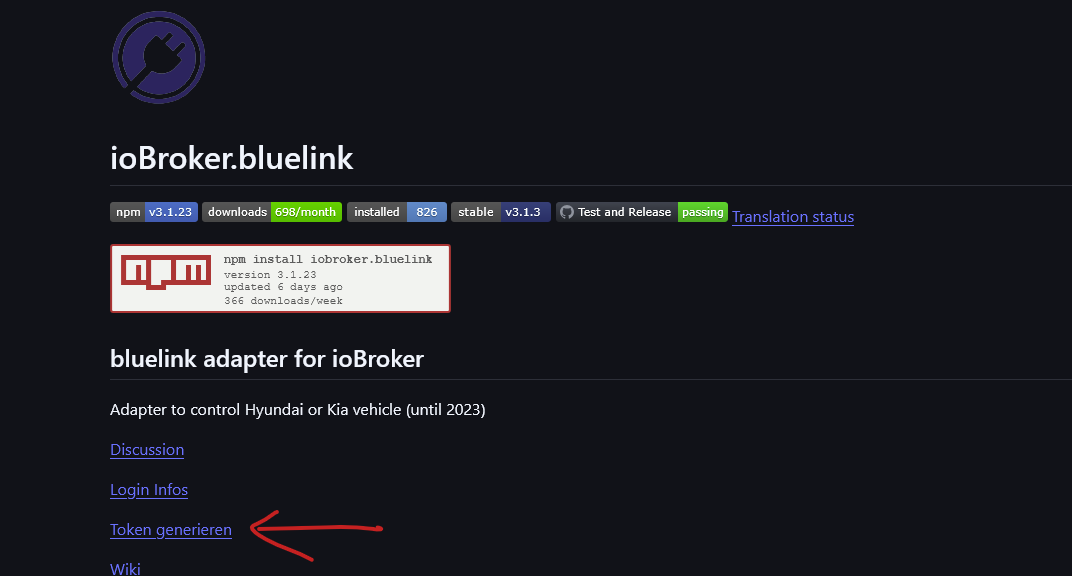
änderer den mal bite auf unseres internes fileKiaFetchApiToken_2.py
ich habs mal in readme verlinkt
-
@fichte_112 sagte in Adapter Hyundai (Bluelink) oder KIA (UVO):
iwr -UseBasicParsing -OutFile ApiToken.py `https://gist.githubusercontent.com/fuatakgun/fa4ef1e1d48b8dca2d22133d4d028dc9/raw/fe95ed7c02913f6277878a100458be78b794603d/gistfile1.txt
ich würde ungerne auf fremde scripte verweisen.. du hast nie dei kontrolle und wenn da einer mist einträngt....
änderer den mal bite auf unseres internes fileKiaFetchApiToken_2.py
ich habs mal in readme verlinkt
-
@arteck ich habe es angepasst.
Funktioniert denn bei euch der Login aktuell noch?
Ich hatte ja die neue Variante bereits in Funktion gebracht. Seit zwei Tagen wird aber der Login verweigert.
Das könnte natürlich auch mal wieder an den Servern von Kia liegen. Deswegen bräuchte ich mal euer Feedback, ob die Server erreichbar sind und ich ggf. nochmal das neue Prozedere durchführe.
bluelink.0	2025-10-23 17:26:16.103	error	next auto login attempt in 1 hour or restart adapter manual
bluelink.0	2025-10-23 17:26:16.103	error	Server is not available or login credentials are wrong
bluelink.0	2025-10-23 17:26:16.102	error	ManagedBluelinkyError: @EuropeController.login: [401] Unauthorized on [POST] https://prd.eu-ccapi.kia.com:8080/api/v1/user/signin - {"errId":"b8d86602-,"errCode":"4010","errMsg":"Require authentication"}
Proxmox und HA ...
Ich schreibe den Code nicht mehr selbst – ich schimpfe mit der KI, bis er funktioniert. -
Funktioniert denn bei euch der Login aktuell noch?
Ich hatte ja die neue Variante bereits in Funktion gebracht. Seit zwei Tagen wird aber der Login verweigert.
Das könnte natürlich auch mal wieder an den Servern von Kia liegen. Deswegen bräuchte ich mal euer Feedback, ob die Server erreichbar sind und ich ggf. nochmal das neue Prozedere durchführe.
bluelink.0 2025-10-23 17:26:16.103 error next auto login attempt in 1 hour or restart adapter manual bluelink.0 2025-10-23 17:26:16.103 error Server is not available or login credentials are wrong bluelink.0 2025-10-23 17:26:16.102 error ManagedBluelinkyError: @EuropeController.login: [401] Unauthorized on [POST] https://prd.eu-ccapi.kia.com:8080/api/v1/user/signin - {"errId":"b8d86602-,"errCode":"4010","errMsg":"Require authentication"}@meister-mopper bei mir funktioniert es
-
such mal in den Ordner vehicleStatusRaw
bei mir
Hochvoltbatterie
vehicleStatusRaw.Green.BatteryManagement.BatteryRemain.Ratio12-Volt Batterie
vehicleStatusRaw.Electronics.Battery.Level@fichte_112 perfekt danke. hat funktioniert
-
Funktioniert denn bei euch der Login aktuell noch?
Ich hatte ja die neue Variante bereits in Funktion gebracht. Seit zwei Tagen wird aber der Login verweigert.
Das könnte natürlich auch mal wieder an den Servern von Kia liegen. Deswegen bräuchte ich mal euer Feedback, ob die Server erreichbar sind und ich ggf. nochmal das neue Prozedere durchführe.
bluelink.0 2025-10-23 17:26:16.103 error next auto login attempt in 1 hour or restart adapter manual bluelink.0 2025-10-23 17:26:16.103 error Server is not available or login credentials are wrong bluelink.0 2025-10-23 17:26:16.102 error ManagedBluelinkyError: @EuropeController.login: [401] Unauthorized on [POST] https://prd.eu-ccapi.kia.com:8080/api/v1/user/signin - {"errId":"b8d86602-,"errCode":"4010","errMsg":"Require authentication"}Kia, richtig?
Der Fehlermeldung nach ist der Token abgelaufen, mach dir n neuen.. mit dem Script.. -
@ilovegym sagte in Adapter Hyundai (Bluelink) oder KIA (UVO):
Kia, richtig?
Der Fehlermeldung nach ist der Token abgelaufen, mach dir n neuen.. mit dem Script..Ich habe einen neuen Refresh Token erstellt (zweimal) und als Passwort eingetragen.
Leider wird der Adapter nicht mehr grün.
-
Funktioniert denn bei euch der Login aktuell noch?
Ich hatte ja die neue Variante bereits in Funktion gebracht. Seit zwei Tagen wird aber der Login verweigert.
Das könnte natürlich auch mal wieder an den Servern von Kia liegen. Deswegen bräuchte ich mal euer Feedback, ob die Server erreichbar sind und ich ggf. nochmal das neue Prozedere durchführe.
bluelink.0 2025-10-23 17:26:16.103 error next auto login attempt in 1 hour or restart adapter manual bluelink.0 2025-10-23 17:26:16.103 error Server is not available or login credentials are wrong bluelink.0 2025-10-23 17:26:16.102 error ManagedBluelinkyError: @EuropeController.login: [401] Unauthorized on [POST] https://prd.eu-ccapi.kia.com:8080/api/v1/user/signin - {"errId":"b8d86602-,"errCode":"4010","errMsg":"Require authentication"}@meister-mopper ja da gabs mal wieder ein Problem..stand aber auch in der App drin.. deshalb am beten immer gegenchecken wenn der Login in Adapter nicht geht, wobei hier auch aufpassen.. wenn der Adapter auf einen anderen Server umgeroutet wird als die App dann passt es dann auch nicht..aber als grobe Richtung..
zigbee hab ich, zwave auch, nuc's genauso und HA auch




Hey! Du scheinst an dieser Unterhaltung interessiert zu sein, hast aber noch kein Konto.
Hast du es satt, bei jedem Besuch durch die gleichen Beiträge zu scrollen? Wenn du dich für ein Konto anmeldest, kommst du immer genau dorthin zurück, wo du zuvor warst, und kannst dich über neue Antworten benachrichtigen lassen (entweder per E-Mail oder Push-Benachrichtigung). Du kannst auch Lesezeichen speichern und Beiträge positiv bewerten, um anderen Community-Mitgliedern deine Wertschätzung zu zeigen.
Mit deinem Input könnte dieser Beitrag noch besser werden 💗
Registrieren AnmeldenSupport us
257
Online33.0k
Benutzer83.5k
Themen1.3m
Beiträge