




Kamera + Bewegungsmelder kombinieren für Gartenüberwachung
-
@el_malto In motionEye kann man bei Erkennung der Bewegung durch motionEye einen Befehl an den ioBroker senden. Ich finde aber keine Möglichkeit einen Befehl vom ioBroker an motionEye zu senden um ein Video aufzunehmen. Habe halt Bewegungsmelder im Garten, die die Kamera triggern sollen, damit nicht jedes wehende Blatt vor der Kamera ein Video produziert.
@smarthome2020 dazu musst du ein bisschen tiefer in die Doku eintauchen. Hier der link wo es beschrieben ist -> https://motion-project.github.io/motion_config.html#OptDetail_Webcontrol
Man kann MotionEye über web control (http Links) steuern. Standardmäßig kannst du nur mit dem localhost, also da wo MotionEye drauf läuft darauf zugreifen. Wenn du über MotionEye über ein anderes Gerät steuern willst, musst du das erst für andere Geräte freigeben. Das machst du in der Config unter:/data/etc/motion.confDa den Parameter
webcontrol_localhost onin
webcontrol_localhost offändern und den Pi neustarten. Damit kann nicht nur der localhost web auf den web control zugreifen sondern auch andere Geräte. Heißt natürlich auch, das jeder beindir im Netzwerk der die URLs kennt die Kamera steuern kann.
Jetzt mal in die Doku gucken die ich oben verlinkt habe. Da stehen dann die Beispiel URLs und wie sich die zusammen setzen. Die URLs kannst du dann einfach mit einen Script in ioBroker per http request aufrufen und so MotionEye steuern.
Kannst dich bei Fragen gern melden. Hat bei mir damals super funktioniert. -
Ich hab mal versucht über ein Workaround an Videoschnipsel zu kommen.
Orientiert habe ich mich am Youtube-Video von Elzershark:
Youtube-TutorialDen RSTP-Stream hab ich entsprechend mit der Auflösung eingetragen in das Blockly-Skript. 10 Sekunden Aufnahmen werden gemacht.
Die Videos werden abgelegt. Wenn ich sie dann öffne, ist der Anteil gut sichtbar, in dem Bewegung zu sehen ist. Der Rest ist lila durchzogen. Statt des RTSP-Streams würde ich gerne den JPEG-Stream der Kamera ins Blockly aufnehmen, jedoch wird dann gar nichts aufgenommen.
So kann ich die Aufnahme zwar per Bewegungsmelder triggern, jedoch sieht das ganze schlecht aus, so dass es eigentlich keinen Nutzen hat. -
@smarthome2020 dazu musst du ein bisschen tiefer in die Doku eintauchen. Hier der link wo es beschrieben ist -> https://motion-project.github.io/motion_config.html#OptDetail_Webcontrol
Man kann MotionEye über web control (http Links) steuern. Standardmäßig kannst du nur mit dem localhost, also da wo MotionEye drauf läuft darauf zugreifen. Wenn du über MotionEye über ein anderes Gerät steuern willst, musst du das erst für andere Geräte freigeben. Das machst du in der Config unter:/data/etc/motion.confDa den Parameter
webcontrol_localhost onin
webcontrol_localhost offändern und den Pi neustarten. Damit kann nicht nur der localhost web auf den web control zugreifen sondern auch andere Geräte. Heißt natürlich auch, das jeder beindir im Netzwerk der die URLs kennt die Kamera steuern kann.
Jetzt mal in die Doku gucken die ich oben verlinkt habe. Da stehen dann die Beispiel URLs und wie sich die zusammen setzen. Die URLs kannst du dann einfach mit einen Script in ioBroker per http request aufrufen und so MotionEye steuern.
Kannst dich bei Fragen gern melden. Hat bei mir damals super funktioniert.Kannst dich bei Fragen gern melden. Hat bei mir damals super funktioniert.
Danke für deine PN @smarthome2020 meinte damit aber eigentlich hier im Thread. Vielleicht ist das für andere ja auch Interessant oder die stehen vor dem gleichen Problem.
Du hast mir ja geschrieben, dass du nur eine Aktivierung von Motion an sich oder das erstellen eines Screenshots gefunden hast. Bitte beschreib mal was du gemacht hast damit ich das nachvollziehen kann. Auf der Seite stehen ja alle Funktionen. Für dich wären das ja eiegtlich diese hier:The following definitions will be used when summarizing the commands that are available for control of Motion. {IP} The IP address of the computer running Motion {port} The port specified for the webcontrol {camid} The camera_id of the camera. The following are the commands available. {IP}:{port}/{camid}/detection/start Start or resume motion detection. {IP}:{port}/{camid}/detection/pause Pause the motion detection. {IP}:{port}/{camid}/action/eventstart Trigger a new event. {IP}:{port}/{camid}/action/eventend Trigger the end of a event. {IP}:{port}/{camid}/action/snapshot Create a snapshotDu musst eigentlich nur {IP}, {port} und {camid} mit deinen Daten ersetzen. Die Links kannst du am besten im Browser testen. Dann weiß du schon mal sicher ob die funktionieren. Und erleichert dann evtl. die Fehlersuche in Blockly.
@smarthome2020 sagte in Kamera + Bewegungsmelder kombinieren für Gartenüberwachung:
Ich hab mal versucht über ein Workaround an Videoschnipsel zu kommen.
Orientiert habe ich mich am Youtube-Video von Elzershark:
Youtube-TutorialDas brauchst du nicht wie im Video zu machen. In dem Video wird das nur mit ffmpeg gemacht. Du hast doch MotionEye dafür installiert. Das stellt dir schon alle Streams so wie du die brauchst und für die VIS zur verfügung und regelt die Aufnahmen usw.
-
Kannst dich bei Fragen gern melden. Hat bei mir damals super funktioniert.
Danke für deine PN @smarthome2020 meinte damit aber eigentlich hier im Thread. Vielleicht ist das für andere ja auch Interessant oder die stehen vor dem gleichen Problem.
Du hast mir ja geschrieben, dass du nur eine Aktivierung von Motion an sich oder das erstellen eines Screenshots gefunden hast. Bitte beschreib mal was du gemacht hast damit ich das nachvollziehen kann. Auf der Seite stehen ja alle Funktionen. Für dich wären das ja eiegtlich diese hier:The following definitions will be used when summarizing the commands that are available for control of Motion. {IP} The IP address of the computer running Motion {port} The port specified for the webcontrol {camid} The camera_id of the camera. The following are the commands available. {IP}:{port}/{camid}/detection/start Start or resume motion detection. {IP}:{port}/{camid}/detection/pause Pause the motion detection. {IP}:{port}/{camid}/action/eventstart Trigger a new event. {IP}:{port}/{camid}/action/eventend Trigger the end of a event. {IP}:{port}/{camid}/action/snapshot Create a snapshotDu musst eigentlich nur {IP}, {port} und {camid} mit deinen Daten ersetzen. Die Links kannst du am besten im Browser testen. Dann weiß du schon mal sicher ob die funktionieren. Und erleichert dann evtl. die Fehlersuche in Blockly.
@smarthome2020 sagte in Kamera + Bewegungsmelder kombinieren für Gartenüberwachung:
Ich hab mal versucht über ein Workaround an Videoschnipsel zu kommen.
Orientiert habe ich mich am Youtube-Video von Elzershark:
Youtube-TutorialDas brauchst du nicht wie im Video zu machen. In dem Video wird das nur mit ffmpeg gemacht. Du hast doch MotionEye dafür installiert. Das stellt dir schon alle Streams so wie du die brauchst und für die VIS zur verfügung und regelt die Aufnahmen usw.
The following definitions will be used when summarizing the commands that are available for control of Motion.

    {IP} The IP address of the computer running Motion
    {port} The port specified for the webcontrol
    {camid} The camera_id of the camera.


The following are the commands available.

    {IP}:{port}/{camid}/detection/start Start or resume motion detection.
    {IP}:{port}/{camid}/detection/pause Pause the motion detection.
    {IP}:{port}/{camid}/action/eventstart Trigger a new event.
    {IP}:{port}/{camid}/action/eventend Trigger the end of a event.
    {IP}:{port}/{camid}/action/snapshot Create a snapshot
Du musst eigentlich nur {IP}, {port} und {camid} mit deinen Daten ersetzen. Die Links kannst du am besten im Browser testen. Dann weiß du schon mal sicher ob die funktionieren. Und erleichert dann evtl. die Fehlersuche in Blockly.
Ja, in den von dir geposteten Befehlen steht ja nur, was von detection/start etc. Oder muss man events definieren? Brauche nur einen Befehl wie: "Nehme Video auf so als wäre die motionEye-interne Bewegungserkennung ausgelöst worden" .
Also... Den Stream kann ich erreichen und im Browser sehen unter:
IP:8091
Nur bin ich mir nicht mehr sicher, welchen Port ich brauche.
Es gibt die Ordner motion und motionEye im Raspberry. Beide haben eine motion.conf-Datei./etc/motioneye/motion.conf # @enabled on # @normal_password # @admin_username admin # @admin_password ........ # @normal_username user webcontrol_interface 1 webcontrol_port 7999 setup_mode off webcontrol_parms 2 webcontrol_localhost off camera camera-1.conf/etc/motion/motion.conf ############################################################ # Webcontrol configuration parameters ############################################################ # Port number used for the webcontrol. webcontrol_port 8080 # Restrict webcontrol connections to the localhost. webcontrol_localhost off # Type of configuration options to allow via the webcontrol. webcontrol_parms 0 ############################################################ # Live stream configuration parameters ############################################################ # The port number for the live stream. stream_port 8081 # Restrict stream connections to the localhost. stream_localhost onIch steige da mit den IPs nicht mehr durch. Habe die von dir geposteten Befehle mal im Browser aufgeführt und geschaut, ob Videodateien entstehen im Zielordner. Da tut sich nichts.
-
The following definitions will be used when summarizing the commands that are available for control of Motion.

    {IP} The IP address of the computer running Motion
    {port} The port specified for the webcontrol
    {camid} The camera_id of the camera.


The following are the commands available.

    {IP}:{port}/{camid}/detection/start Start or resume motion detection.
    {IP}:{port}/{camid}/detection/pause Pause the motion detection.
    {IP}:{port}/{camid}/action/eventstart Trigger a new event.
    {IP}:{port}/{camid}/action/eventend Trigger the end of a event.
    {IP}:{port}/{camid}/action/snapshot Create a snapshot
Du musst eigentlich nur {IP}, {port} und {camid} mit deinen Daten ersetzen. Die Links kannst du am besten im Browser testen. Dann weiß du schon mal sicher ob die funktionieren. Und erleichert dann evtl. die Fehlersuche in Blockly.
Ja, in den von dir geposteten Befehlen steht ja nur, was von detection/start etc. Oder muss man events definieren? Brauche nur einen Befehl wie: "Nehme Video auf so als wäre die motionEye-interne Bewegungserkennung ausgelöst worden" .
Also... Den Stream kann ich erreichen und im Browser sehen unter:
IP:8091
Nur bin ich mir nicht mehr sicher, welchen Port ich brauche.
Es gibt die Ordner motion und motionEye im Raspberry. Beide haben eine motion.conf-Datei./etc/motioneye/motion.conf # @enabled on # @normal_password # @admin_username admin # @admin_password ........ # @normal_username user webcontrol_interface 1 webcontrol_port 7999 setup_mode off webcontrol_parms 2 webcontrol_localhost off camera camera-1.conf/etc/motion/motion.conf ############################################################ # Webcontrol configuration parameters ############################################################ # Port number used for the webcontrol. webcontrol_port 8080 # Restrict webcontrol connections to the localhost. webcontrol_localhost off # Type of configuration options to allow via the webcontrol. webcontrol_parms 0 ############################################################ # Live stream configuration parameters ############################################################ # The port number for the live stream. stream_port 8081 # Restrict stream connections to the localhost. stream_localhost onIch steige da mit den IPs nicht mehr durch. Habe die von dir geposteten Befehle mal im Browser aufgeführt und geschaut, ob Videodateien entstehen im Zielordner. Da tut sich nichts.
@smarthome2020 sagte in Kamera + Bewegungsmelder kombinieren für Gartenüberwachung:
Ja, in den von dir geposteten Befehlen steht ja nur, was von detection/start etc. Oder muss man events definieren? Brauche nur einen Befehl wie: "Nehme Video auf so als wäre die motionEye-interne Bewegungserkennung ausgelöst worden" .
Das müsste
> {IP}:{port}/{camid}/action/eventstart Trigger a new event. > {IP}:{port}/{camid}/action/eventend Trigger the end of a event.für Aufnahme starten und stoppen sein.
-
The following definitions will be used when summarizing the commands that are available for control of Motion.

    {IP} The IP address of the computer running Motion
    {port} The port specified for the webcontrol
    {camid} The camera_id of the camera.


The following are the commands available.

    {IP}:{port}/{camid}/detection/start Start or resume motion detection.
    {IP}:{port}/{camid}/detection/pause Pause the motion detection.
    {IP}:{port}/{camid}/action/eventstart Trigger a new event.
    {IP}:{port}/{camid}/action/eventend Trigger the end of a event.
    {IP}:{port}/{camid}/action/snapshot Create a snapshot
Du musst eigentlich nur {IP}, {port} und {camid} mit deinen Daten ersetzen. Die Links kannst du am besten im Browser testen. Dann weiß du schon mal sicher ob die funktionieren. Und erleichert dann evtl. die Fehlersuche in Blockly.
Ja, in den von dir geposteten Befehlen steht ja nur, was von detection/start etc. Oder muss man events definieren? Brauche nur einen Befehl wie: "Nehme Video auf so als wäre die motionEye-interne Bewegungserkennung ausgelöst worden" .
Also... Den Stream kann ich erreichen und im Browser sehen unter:
IP:8091
Nur bin ich mir nicht mehr sicher, welchen Port ich brauche.
Es gibt die Ordner motion und motionEye im Raspberry. Beide haben eine motion.conf-Datei./etc/motioneye/motion.conf # @enabled on # @normal_password # @admin_username admin # @admin_password ........ # @normal_username user webcontrol_interface 1 webcontrol_port 7999 setup_mode off webcontrol_parms 2 webcontrol_localhost off camera camera-1.conf/etc/motion/motion.conf ############################################################ # Webcontrol configuration parameters ############################################################ # Port number used for the webcontrol. webcontrol_port 8080 # Restrict webcontrol connections to the localhost. webcontrol_localhost off # Type of configuration options to allow via the webcontrol. webcontrol_parms 0 ############################################################ # Live stream configuration parameters ############################################################ # The port number for the live stream. stream_port 8081 # Restrict stream connections to the localhost. stream_localhost onIch steige da mit den IPs nicht mehr durch. Habe die von dir geposteten Befehle mal im Browser aufgeführt und geschaut, ob Videodateien entstehen im Zielordner. Da tut sich nichts.
@smarthome2020 Mit welchen Port kommst du denn auf die Benutzeroberfläche? Ist das 8080 oder 7999? Daran erkennst du ja welche config genutzt wird. Warum du zwei ordner hast weiß ich nicht.
Vermute das es /etc/motion/motion.conf ist, weil da auch Port 8081 für den Stream definiert ist. -
@smarthome2020 Mit welchen Port kommst du denn auf die Benutzeroberfläche? Ist das 8080 oder 7999? Daran erkennst du ja welche config genutzt wird. Warum du zwei ordner hast weiß ich nicht.
Vermute das es /etc/motion/motion.conf ist, weil da auch Port 8081 für den Stream definiert ist.Konfigurationen kann ich unter Port 8765 vornehmen., Also Kamera hinzufügen, Speicherort.....
Den Stream sehen in "Vollbild" kann ich unter Port 8091
Versuche im Browser:
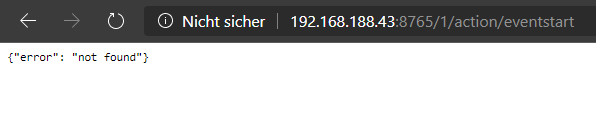
- IP:8765/1/action/eventstart --> {"error": "not found"}
- IP:8081/1/action/eventstart --> Cannot GET /1/action/eventstart
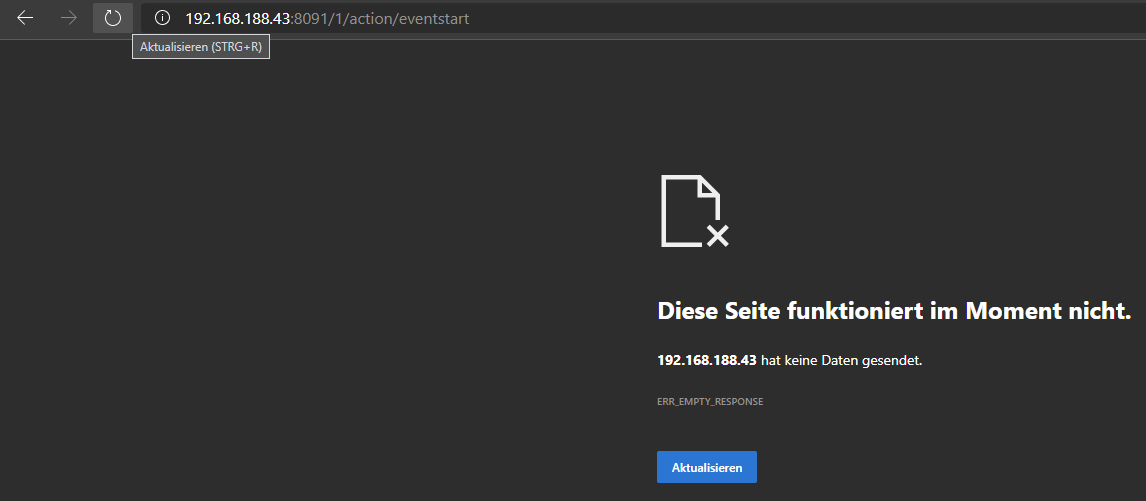
- IP:8091/1/action/eventstart -->Diese Seite funktioniert im Moment nicht. ...keine Daten gesendet.
-
Konfigurationen kann ich unter Port 8765 vornehmen., Also Kamera hinzufügen, Speicherort.....
Den Stream sehen in "Vollbild" kann ich unter Port 8091
Versuche im Browser:
- IP:8765/1/action/eventstart --> {"error": "not found"}
- IP:8081/1/action/eventstart --> Cannot GET /1/action/eventstart
- IP:8091/1/action/eventstart -->Diese Seite funktioniert im Moment nicht. ...keine Daten gesendet.
# Port number used for the webcontrol.
webcontrol_port 8080
Du musst Port 8080 nehmen.
-
# Port number used for the webcontrol.
webcontrol_port 8080
Du musst Port 8080 nehmen.
@el_malto
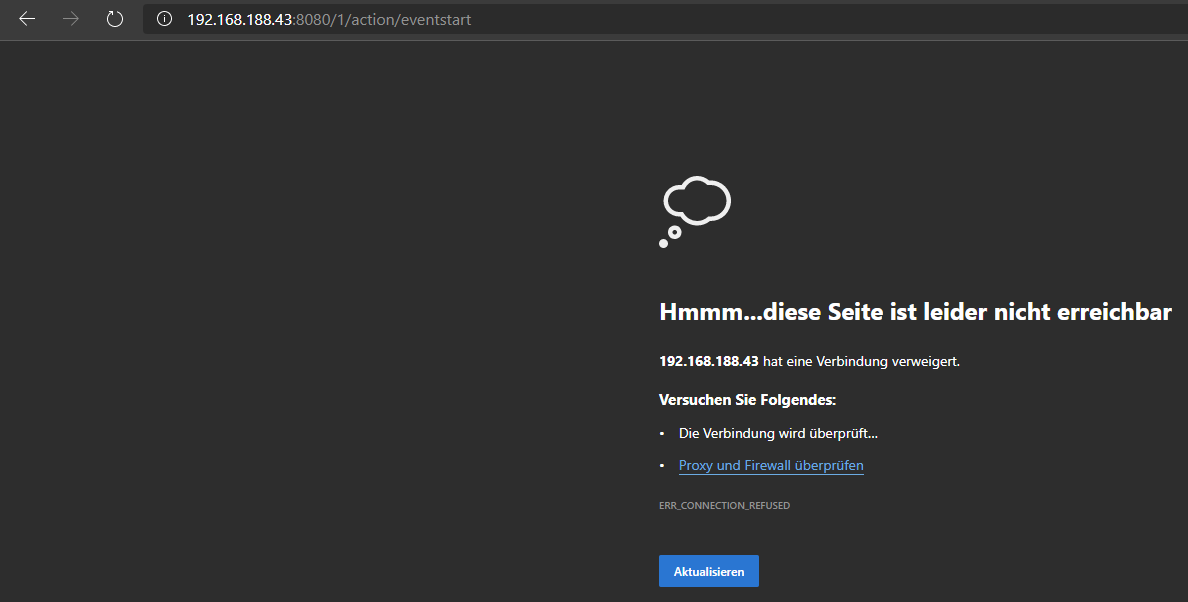
IP:8080/1/action/eventstart --> Hmmm...diese Seite ist leider nicht erreichbar. IP hat eine Verbindung verweigert. -
@el_malto
IP:8080/1/action/eventstart --> Hmmm...diese Seite ist leider nicht erreichbar. IP hat eine Verbindung verweigert.@smarthome2020 hast du denn nachdem du
webcontrol_localhost offgemacht hast auch einen reboot gemacht?
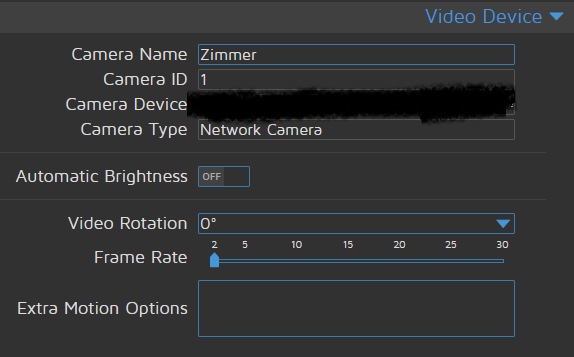
Und ist deine camid wirklich richtig? -
@smarthome2020 hast du denn nachdem du
webcontrol_localhost offgemacht hast auch einen reboot gemacht?
Und ist deine camid wirklich richtig?So stehts in der Einstellungsmaske. Bearbeiten kann ich das auch nicht wirklich.
-
So stehts in der Einstellungsmaske. Bearbeiten kann ich das auch nicht wirklich.
@smarthome2020 hast du denn mal geguckt ob du unter
/data/etc/motion.confauch die configs hast?
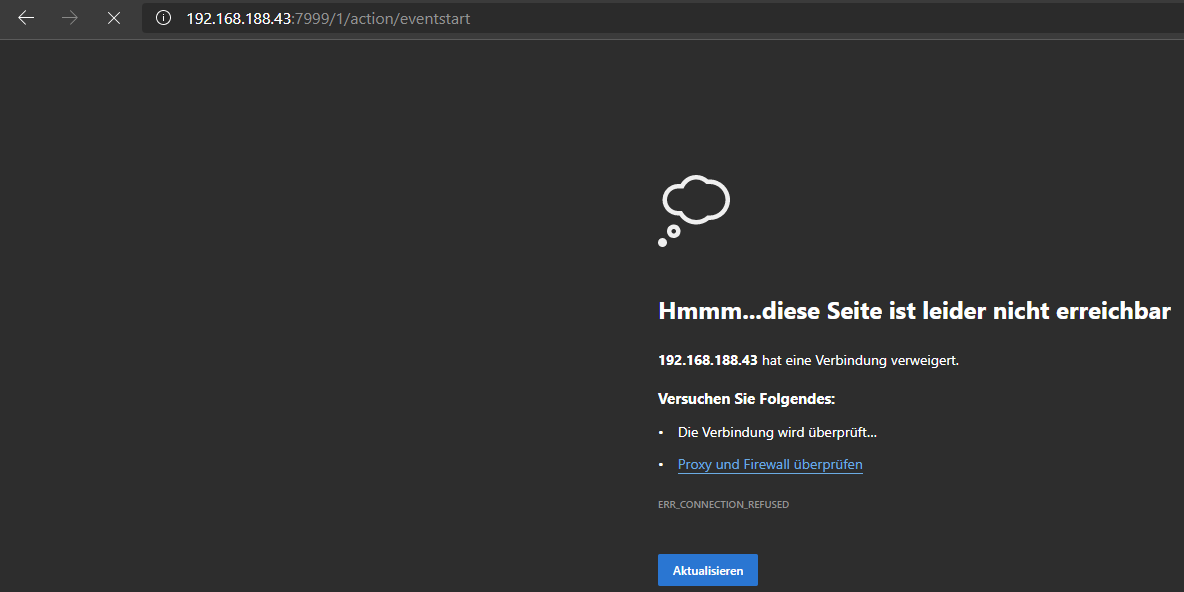
Ansonsten mach mal Screenshots vom Browser wenn du die Links da eingibst und die Rückmeldung bekommst.
Könnte sonst auch mal per TeamViewer drauf gucken. Hab gerade Zeit. -
# Port number used for the webcontrol.
webcontrol_port 8080
Du musst Port 8080 nehmen.
# Port number used for the webcontrol.
webcontrol_port 8080
Du musst Port 8080 nehmen.
Oder probier mal Port 7999 aus. Der steht ja in der anderen config.
-
# Port number used for the webcontrol.
webcontrol_port 8080
Du musst Port 8080 nehmen.
Oder probier mal Port 7999 aus. Der steht ja in der anderen config.
@el_malto ich mache gleich Screenshots. Musste nur eben einkaufen.
-
@el_malto ich mache gleich Screenshots. Musste nur eben einkaufen.
@smarthome2020 jo ich bin den Abend am PC und bin hier on.
-
@smarthome2020 jo ich bin den Abend am PC und bin hier on.
-
@smarthome2020 das ist komisch. Also dann nochmal von ganz vorne.
Nach welcher Anleitung und auf welchem Gerät mit welcher IP hast du MotionEye installiert? -
@smarthome2020 das ist komisch. Also dann nochmal von ganz vorne.
Nach welcher Anleitung und auf welchem Gerät mit welcher IP hast du MotionEye installiert?System: RPi 4 4GB Ram
Software: Raspbian Buster
IP des RPis ist halt die von oben aus den Bildern.Installiert ist nur der ioBroker sowie motionEye
Installationsanleitung:
- https://wiki.instar.de/Erweitert/IOBroker_auf_Raspberry_Pi/motionEye/
- https://github.com/ccrisan/motioneye/wiki/Install-On-Raspbian
--> motionEye geht ja auch. Stream wird angezeigt etc.
-
System: RPi 4 4GB Ram
Software: Raspbian Buster
IP des RPis ist halt die von oben aus den Bildern.Installiert ist nur der ioBroker sowie motionEye
Installationsanleitung:
- https://wiki.instar.de/Erweitert/IOBroker_auf_Raspberry_Pi/motionEye/
- https://github.com/ccrisan/motioneye/wiki/Install-On-Raspbian
--> motionEye geht ja auch. Stream wird angezeigt etc.
@smarthome2020 ok laut Anleitung ist da
/etc/motioneye/motioneye.confdeine Config Datei. Guck dir die mal an. Da müsstest du dann
webcontrol_localhost offeinstellen. Da sind dann ja auch die Ports drin.
Poste am besten mal den Inhalt der Datei. -
@smarthome2020 ok laut Anleitung ist da
/etc/motioneye/motioneye.confdeine Config Datei. Guck dir die mal an. Da müsstest du dann
webcontrol_localhost offeinstellen. Da sind dann ja auch die Ports drin.
Poste am besten mal den Inhalt der Datei.Woran lag es? "http://" musste davor.
Nun steht das wenigstens im Browser. Nur wird kein Video aufgenommen. Der Zielordner bleibt ohne neues Video.

Hello! It looks like you're interested in this conversation, but you don't have an account yet.
Getting fed up of having to scroll through the same posts each visit? When you register for an account, you'll always come back to exactly where you were before, and choose to be notified of new replies (either via email, or push notification). You'll also be able to save bookmarks and upvote posts to show your appreciation to other community members.
With your input, this post could be even better 💗
Register LoginSupport us
505
Online32.8k
Users82.7k
Topics1.3m
Posts