




Motioneye Zeitliche Video Aufnahme
-
@yoda Die IP Adresse an sich ist aber erreichbar?
Das mal umgestellt:
motion_control_localhost Set this to false to restrict the motion daemon's HTTP control server to listen on all interfaces. Defaults to true.@wendy2702
Ja die Ip Adressen sind erreichbar über den Browser am Raspi 3
Hier die Eingabe über Port 8765 (Motioneye)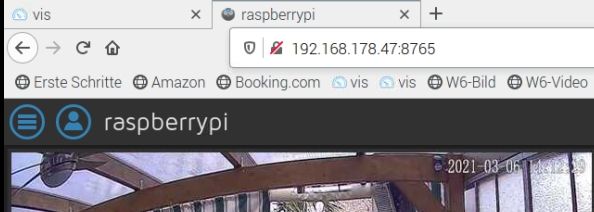
Hier die Eingabe über Port 8081
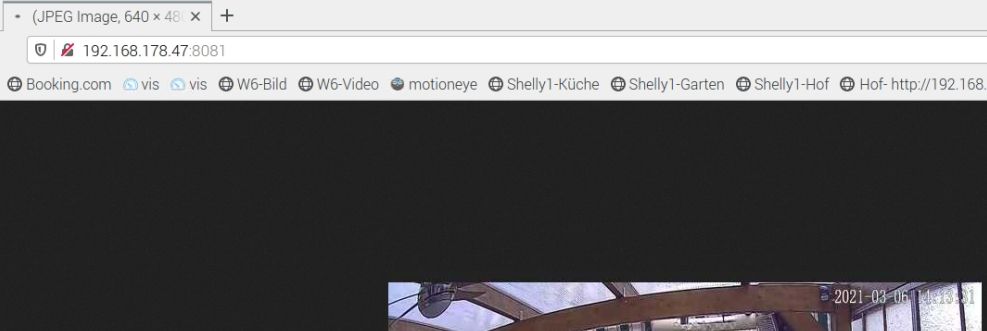
Wo sollte ich das genau umsetllen - falls noch notwenig?

motion_control_localhost
Set this to false to restrict the motion daemon's HTTP control server to listen on all interfaces. Defaults to true.
Gruß Yoda
Stand 05.2025
Raspberry5,linux,arm64,CPUs:4,Geschwindigkeit:2400 MHz,Modell:Cortex-A76,RAM:15.8 GB,Node.js:v20.19.2 -
@wendy2702
Ja die Ip Adressen sind erreichbar über den Browser am Raspi 3
Hier die Eingabe über Port 8765 (Motioneye)Hier die Eingabe über Port 8081
Wo sollte ich das genau umsetllen - falls noch notwenig? motion_control_localhost Set this to false to restrict the motion daemon's HTTP control server to listen on all interfaces. Defaults to true.Hier:
motioneye.conf
motionEye uses a configuration file (usually called motioneye.conf) that allows customizing your setup (including paths, logging, various timeouts and other options that cannot be modified through the UI). The default location for this file is /etc/motioneye/motioneye.conf and can be changed using the -c command line switch.
Bitte keine Fragen per PN, die gehören ins Forum!
Benutzt das Voting rechts unten im Beitrag wenn er euch geholfen hat.
-
Hier:
motioneye.conf motionEye uses a configuration file (usually called motioneye.conf) that allows customizing your setup (including paths, logging, various timeouts and other options that cannot be modified through the UI). The default location for this file is /etc/motioneye/motioneye.conf and can be changed using the -c command line switch. -
@wendy2702
Eingabe am Raspi3 / Terminal wo Motioneye läuft: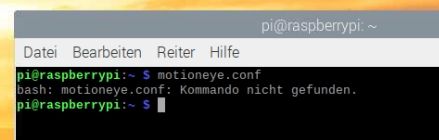
@yoda so geht das auch nicht.
Das file muss mit einem Editor geöffnet und bearbeitet werden.
z.B.
sudo nano /etc/motioneye/motioneye.confBitte keine Fragen per PN, die gehören ins Forum!
Benutzt das Voting rechts unten im Beitrag wenn er euch geholfen hat.
-
@yoda so geht das auch nicht.
Das file muss mit einem Editor geöffnet und bearbeitet werden.
z.B.
sudo nano /etc/motioneye/motioneye.conf@wendy2702 soory aber die Befehle über das Terminal sind mir grade mal zu 1 % Bekannt :-(
habe die conf. nun aufgerufen - möchte da nun aber auch nichts falsch machen - wie geht es da weiter?
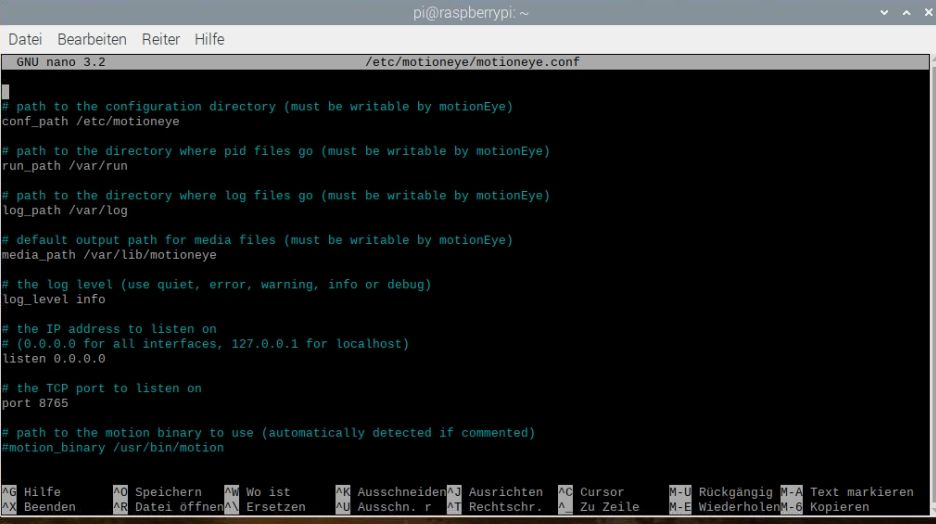
# path to the configuration directory (must be writable by motionEye)
conf_path /etc/motioneye

# path to the directory where pid files go (must be writable by motionEye)
run_path /var/run

# path to the directory where log files go (must be writable by motionEye)
log_path /var/log

# default output path for media files (must be writable by motionEye)
media_path /var/lib/motioneye

# the log level (use quiet, error, warning, info or debug)
log_level info

# the IP address to listen on
# (0.0.0.0 for all interfaces, 127.0.0.1 for localhost)
listen 0.0.0.0

# the TCP port to listen on
port 8765

# path to the motion binary to use (automatically detected if commented)
#motion_binary /usr/bin/motion
Gruß Yoda
Stand 05.2025
Raspberry5,linux,arm64,CPUs:4,Geschwindigkeit:2400 MHz,Modell:Cortex-A76,RAM:15.8 GB,Node.js:v20.19.2 -
@wendy2702 soory aber die Befehle über das Terminal sind mir grade mal zu 1 % Bekannt :-(
habe die conf. nun aufgerufen - möchte da nun aber auch nichts falsch machen - wie geht es da weiter?
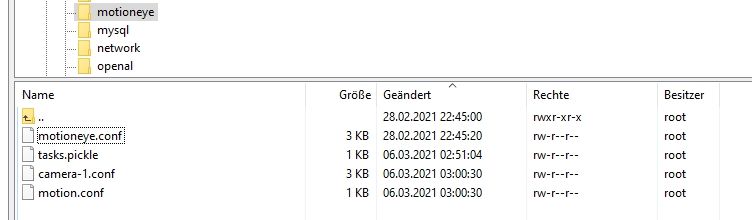
# path to the configuration directory (must be writable by motionEye) conf_path /etc/motioneye # path to the directory where pid files go (must be writable by motionEye) run_path /var/run # path to the directory where log files go (must be writable by motionEye) log_path /var/log # default output path for media files (must be writable by motionEye) media_path /var/lib/motioneye # the log level (use quiet, error, warning, info or debug) log_level info # the IP address to listen on # (0.0.0.0 for all interfaces, 127.0.0.1 for localhost) listen 0.0.0.0 # the TCP port to listen on port 8765 # path to the motion binary to use (automatically detected if commented) #motion_binary /usr/bin/motionich habe über WinCSP mal die Datei gesucht und gefunden:
# path to the configuration directory (must be writable by motionEye)
conf_path /etc/motioneye

# path to the directory where pid files go (must be writable by motionEye)
run_path /var/run

# path to the directory where log files go (must be writable by motionEye)
log_path /var/log

# default output path for media files (must be writable by motionEye)
media_path /var/lib/motioneye

# the log level (use quiet, error, warning, info or debug)
log_level info

# the IP address to listen on
# (0.0.0.0 for all interfaces, 127.0.0.1 for localhost)
listen 0.0.0.0

# the TCP port to listen on
port 8765

# path to the motion binary to use (automatically detected if commented)
#motion_binary /usr/bin/motion

# whether motion HTTP control interface listens on
# localhost or on all interfaces
motion_control_localhost true

# the TCP port that motion HTTP control interface listens on
motion_control_port 7999

# interval in seconds at which motionEye checks if motion is running
motion_check_interval 10

# whether to restart the motion daemon when an error occurs while communicating with it
motion_restart_on_errors false

# interval in seconds at which motionEye checks the SMB mounts
mount_check_interval 300

# interval in seconds at which the janitor is called
# to remove old pictures and movies
cleanup_interval 43200

# timeout in seconds to wait for response from a remote motionEye server
remote_request_timeout 10

# timeout in seconds to wait for mjpg data from the motion daemon
mjpg_client_timeout 10

# timeout in seconds after which an idle mjpg client is removed
# (set to 0 to disable)
mjpg_client_idle_timeout 10

# enable SMB shares (requires motionEye to run as root)
smb_shares false

# the directory where the SMB mount points will be created
smb_mount_root /media

# path to the wpa_supplicant.conf file
# (enable this to configure wifi settings from the UI)
#wpa_supplicant_conf /etc/wpa_supplicant.conf

# path to the localtime file
# (enable this to configure the system time zone from the UI)
#local_time_file /etc/localtime

# enables shutdown and rebooting after changing system settings
# (such as wifi settings or time zone)
enable_reboot false

# timeout in seconds to use when talking to the SMTP server
smtp_timeout 60

# timeout in seconds to wait for media files list
list_media_timeout 120

# timeout in seconds to wait for media files list, when sending emails
list_media_timeout_email 10

# timeout in seconds to wait for zip file creation
zip_timeout 500

# timeout in seconds to wait for timelapse creation
timelapse_timeout 500

# enable adding and removing cameras from UI
add_remove_cameras true

# enables HTTP basic authentication scheme (in addition to, not instead of the signature mechanism)
http_basic_auth false

# overrides the hostname (useful if motionEye runs behind a reverse proxy)
# server_name motionEye
Wenn ich das Richtig lese wäre das doch ok auf True:

Gruß Yoda
Stand 05.2025
Raspberry5,linux,arm64,CPUs:4,Geschwindigkeit:2400 MHz,Modell:Cortex-A76,RAM:15.8 GB,Node.js:v20.19.2 -
ich habe über WinCSP mal die Datei gesucht und gefunden:
# path to the configuration directory (must be writable by motionEye)
conf_path /etc/motioneye

# path to the directory where pid files go (must be writable by motionEye)
run_path /var/run

# path to the directory where log files go (must be writable by motionEye)
log_path /var/log

# default output path for media files (must be writable by motionEye)
media_path /var/lib/motioneye

# the log level (use quiet, error, warning, info or debug)
log_level info

# the IP address to listen on
# (0.0.0.0 for all interfaces, 127.0.0.1 for localhost)
listen 0.0.0.0

# the TCP port to listen on
port 8765

# path to the motion binary to use (automatically detected if commented)
#motion_binary /usr/bin/motion

# whether motion HTTP control interface listens on
# localhost or on all interfaces
motion_control_localhost true

# the TCP port that motion HTTP control interface listens on
motion_control_port 7999

# interval in seconds at which motionEye checks if motion is running
motion_check_interval 10

# whether to restart the motion daemon when an error occurs while communicating with it
motion_restart_on_errors false

# interval in seconds at which motionEye checks the SMB mounts
mount_check_interval 300

# interval in seconds at which the janitor is called
# to remove old pictures and movies
cleanup_interval 43200

# timeout in seconds to wait for response from a remote motionEye server
remote_request_timeout 10

# timeout in seconds to wait for mjpg data from the motion daemon
mjpg_client_timeout 10

# timeout in seconds after which an idle mjpg client is removed
# (set to 0 to disable)
mjpg_client_idle_timeout 10

# enable SMB shares (requires motionEye to run as root)
smb_shares false

# the directory where the SMB mount points will be created
smb_mount_root /media

# path to the wpa_supplicant.conf file
# (enable this to configure wifi settings from the UI)
#wpa_supplicant_conf /etc/wpa_supplicant.conf

# path to the localtime file
# (enable this to configure the system time zone from the UI)
#local_time_file /etc/localtime

# enables shutdown and rebooting after changing system settings
# (such as wifi settings or time zone)
enable_reboot false

# timeout in seconds to use when talking to the SMTP server
smtp_timeout 60

# timeout in seconds to wait for media files list
list_media_timeout 120

# timeout in seconds to wait for media files list, when sending emails
list_media_timeout_email 10

# timeout in seconds to wait for zip file creation
zip_timeout 500

# timeout in seconds to wait for timelapse creation
timelapse_timeout 500

# enable adding and removing cameras from UI
add_remove_cameras true

# enables HTTP basic authentication scheme (in addition to, not instead of the signature mechanism)
http_basic_auth false

# overrides the hostname (useful if motionEye runs behind a reverse proxy)
# server_name motionEye
Wenn ich das Richtig lese wäre das doch ok auf True:
@yoda Ja.
Und damit lauscht er nur auf dem eigenen Interface. Wohl aber nicht auf denen die von extern kommen.
Stell den mal auf "false" und starte Motioneye neu und teste dann mal das http kommando.
Bitte keine Fragen per PN, die gehören ins Forum!
Benutzt das Voting rechts unten im Beitrag wenn er euch geholfen hat.
-
@yoda Ja.
Und damit lauscht er nur auf dem eigenen Interface. Wohl aber nicht auf denen die von extern kommen.
Stell den mal auf "false" und starte Motioneye neu und teste dann mal das http kommando.
@wendy2702
ok habe es gemacht -- Wert steht nun auf False.
- Neustart vom ganzen Raspi3 zur Sicherheit
- Befehl im Blocky und auch mal im Browser ausgeführt : http://192.168.178.47:7999/1/detection/start
x Eine Video Datei wird allerdings nicht auf dem Raspi angelegt.
Was mich nun aber grade etwas verwundert, bisschen konfus:
Bei einer Bewegung wird über die Kamera eigene Software ein Video (per Handy zugriff - cloud) erzeugt.
Dieses sollte aber eigentlich auch auf dem Raspi angelegt werden. - Tut es heute aber nicht mehr.Ich habe hier gestern noch etwas mit der Kamera Einstellungen von Motion eye rumgespielt,
und nie Aufnahmen gesehen.
Heute sehe ich die von Gestern - aber nicht die von grade Aktuell.Vielleicht macht er also den Befehl - nur wird die Video Datei nicht angelegt?...
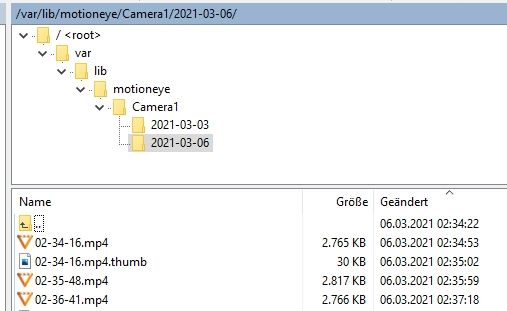
Oh man was für ein durcheinander....Aufnahmen nur von Gestern bzw. die Nacht auf dem Raspi:
@wendy2702 Danke schon mal, das du dir die Zeit für mich genommen hast!
LGGruß Yoda
Stand 05.2025
Raspberry5,linux,arm64,CPUs:4,Geschwindigkeit:2400 MHz,Modell:Cortex-A76,RAM:15.8 GB,Node.js:v20.19.2 -
@wendy2702
ok habe es gemacht -- Wert steht nun auf False.
- Neustart vom ganzen Raspi3 zur Sicherheit
- Befehl im Blocky und auch mal im Browser ausgeführt : http://192.168.178.47:7999/1/detection/start
x Eine Video Datei wird allerdings nicht auf dem Raspi angelegt.
Was mich nun aber grade etwas verwundert, bisschen konfus:
Bei einer Bewegung wird über die Kamera eigene Software ein Video (per Handy zugriff - cloud) erzeugt.
Dieses sollte aber eigentlich auch auf dem Raspi angelegt werden. - Tut es heute aber nicht mehr.Ich habe hier gestern noch etwas mit der Kamera Einstellungen von Motion eye rumgespielt,
und nie Aufnahmen gesehen.
Heute sehe ich die von Gestern - aber nicht die von grade Aktuell.Vielleicht macht er also den Befehl - nur wird die Video Datei nicht angelegt?...
Oh man was für ein durcheinander....Aufnahmen nur von Gestern bzw. die Nacht auf dem Raspi:
@wendy2702 Danke schon mal, das du dir die Zeit für mich genommen hast!
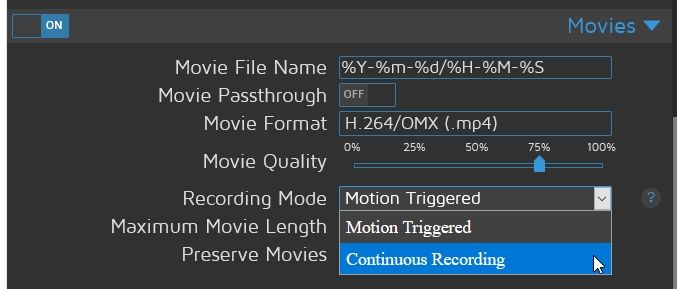
LGich habe hier nun noch folgendes rausgefunden.
Stelle ich in der Motion Software den "Recording Mode" auf "Motion Trigger"
- wird keine Datei angelegt.
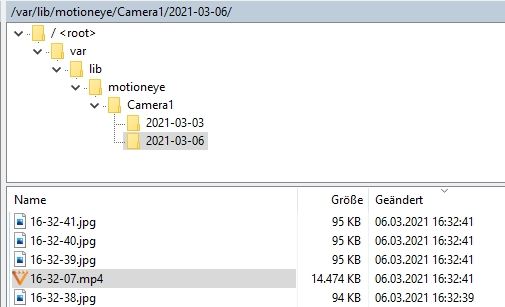
Stelle ich auf " Continuous Recording"
- werden dauerhaft Dateien erzeugt.
Wenn man nun die zwei Einstellungen per Befehl (idealerweise im Blocky) wechseln könnte - wäre es doch die Lösung...
Zumindest zeigt es ja schon mal das die Berechtigungen und Pfade wie ich sie habe in Ordnung wären.
Gruß Yoda
Stand 05.2025
Raspberry5,linux,arm64,CPUs:4,Geschwindigkeit:2400 MHz,Modell:Cortex-A76,RAM:15.8 GB,Node.js:v20.19.2 -
ich habe hier nun noch folgendes rausgefunden.
Stelle ich in der Motion Software den "Recording Mode" auf "Motion Trigger"
- wird keine Datei angelegt.
Stelle ich auf " Continuous Recording"
- werden dauerhaft Dateien erzeugt.
Wenn man nun die zwei Einstellungen per Befehl (idealerweise im Blocky) wechseln könnte - wäre es doch die Lösung...
Zumindest zeigt es ja schon mal das die Berechtigungen und Pfade wie ich sie habe in Ordnung wären.
-
@fredf Danke für den Link, das ist sehr passend.
@wendy2702 Danke auch nochmal für deine Hilfe.Ich habe das soweit nun auch nachgebaut. Die Position wäre dann wohl für mich Interessant
Run A Command: ON .........curl <IP-Adresse ....tEventStart
Run An End Command: ON .......curl <IP-Adresse tEventStopIm Combination mit den beiden Datenpunkten
javascript.0.motioneye.getEventStart
javascript.0.motioneye.getEventStopIst für für die externe Triggerung wohl der Richtige weg, klappt aber noch nicht bei mir- ich frage dort einmal nach.
https://forum.iobroker.net/topic/40016/bewegungserkennung-mit-motioneye-lösung-komplett-in-blocklyLG



Hey! Du scheinst an dieser Unterhaltung interessiert zu sein, hast aber noch kein Konto.
Hast du es satt, bei jedem Besuch durch die gleichen Beiträge zu scrollen? Wenn du dich für ein Konto anmeldest, kommst du immer genau dorthin zurück, wo du zuvor warst, und kannst dich über neue Antworten benachrichtigen lassen (entweder per E-Mail oder Push-Benachrichtigung). Du kannst auch Lesezeichen speichern und Beiträge positiv bewerten, um anderen Community-Mitgliedern deine Wertschätzung zu zeigen.
Mit deinem Input könnte dieser Beitrag noch besser werden 💗
Registrieren AnmeldenSupport us
405
Online33.0k
Benutzer83.6k
Themen1.3m
Beiträge